Troubleshooting
What to check before reporting a fault
Start here
The one-minute check
Work down the list in order. Each step rules out a whole class of problem, so stopping early is normal.
How it works
The chain between the camera and your screen
Six things have to be working for a live picture to reach you. Knowing which link a message is about tells you immediately whether it is yours to act on.
On the mast, at the site
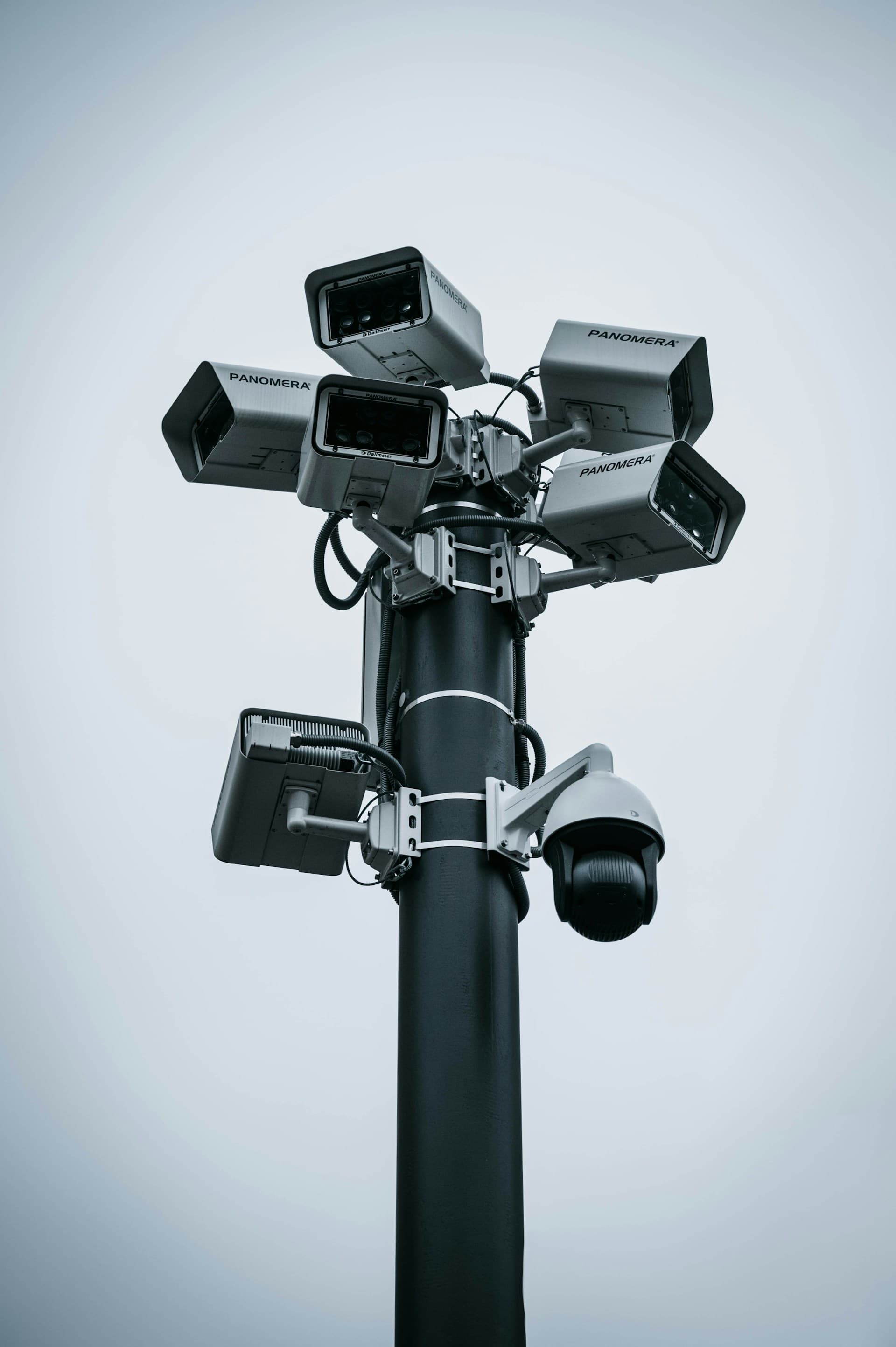
A motorised dome that films the scene and encodes the picture twice over — a small version for everyday viewing and a large one for detail. It has no connection of its own; it is wired into the recorder and reachable only through it.
The camera shows as offline and the Start button will not arm. Nothing in this dashboard can revive it — it needs someone at the site.
In the cabinet, at the site
Records to its own hard disk around the clock and is the only door to the camera. Live picture, stored footage and camera movement are all asked of the recorder, never of the camera directly.
Live view, playback and the camera controls stop together. Recording usually carries on regardless, so footage covering the outage is normally still there once the link returns.
Beside the recorder
The site's only way out: an industrial router with a mobile SIM. It dials out to our server — nothing can dial in to the site, which is exactly why the equipment is not exposed to the internet.
Everything about the site goes quiet at once. Mobile coverage at a remote site moves with the weather, the time of day and the carrier's own load.
Between the site and the server
A private encrypted path carried over that mobile link. The camera and recorder sit inside it and are never published to the public internet.
The site reads as offline even when the router still has signal. It re-establishes itself once the mobile link is stable again.
In a data centre
Runs this dashboard, keeps the connection history, and pulls video from the recorder only while somebody is actually watching. With no viewer, no video crosses the link at all.
This page will not load for anyone. If it loaded, the server is up.
Wherever you are
The browser plays the video, judges how well it is arriving, and counts the data it uses. It is the last link, and the only one you have any direct control over.
Only your own view suffers. The site keeps recording, and other people may be watching the same camera without trouble.
Status words
What the Site Connection card is telling you
The verdict line uses a fixed set of phrases. Each one means something specific about where the chain broke.
| Reading | What it means | What to do |
|---|---|---|
| All devices reachable | Nothing needs attention at this site. | Nothing. If a page still looks wrong, the fault is on your side — reload it. |
| Site offline — power off or no connection at the site | Nothing at the site answers, and the inverter's datalogger stopped uploading at the same time — so the whole site went quiet, not only our link to it. Usually the site is powered off, or its mobile data or signal is gone. The app checks it every few minutes and picks it up again on its own. | Wait, or check whether the site was switched off on purpose. The app backs off to a check every few minutes and recovers by itself when the site powers back up. Report it only if nobody expected the site to be off. |
| Link down — the site is not answering us | Nothing at the site is answering. The usual causes, in order: the mobile data package has run out, there is no 4G signal, or the router has lost power. Nothing at the site can be seen or controlled until the link returns. | Wait. The site dials out on its own and the reading recovers by itself. Report it only if it stays down beyond an hour or two. |
| Link up, NVR not reachable | The tunnel is fine, so this is the NVR itself — check that it is powered and on the network. | Wait a few minutes, then report it. The mobile link is up but the recorder itself is not answering — that usually needs someone at the site. |
| NVR refused the connection | The app stopped calling the NVR after it rejected the credentials. An administrator has to clear this. | Report it. The app has deliberately stopped calling the recorder so the account is not locked out. Only an administrator can clear this. |
| Video service down | The site is reachable but the video service is not running, so live view and playback are unavailable. | Report it. Live video is unavailable, though still images and stored footage may still work. |
| Link up, DessMonitor not reporting | The site is reachable but the inverter dongle is not reporting to DessMonitor. Check the dongle and its Wi-Fi. | Wait. The inverter's own cloud service is a separate path and often catches up unaided. Cameras are unaffected. |
| Multiple systems down | More than one system is down at once — open the rows below to see which. | Report it, with the time. More than one system is down at once, which usually points at the site rather than at any one device. |
| Site parked | This site is switched off in the admin console — its kit is not being checked. | Nothing. The site has been switched off in the dashboard on purpose. |
| No devices configured | No NVR and no DessMonitor account are set for this site yet. | Report it if you expected devices here. No equipment has been registered for this site yet. |
| Waiting for the first check | No reading yet. | Wait a minute. The background check runs every minute and has not filed its first report since the server started. |
Symptoms
Specific problems, and what each one actually means
Pick the area, then the message you are seeing. Each entry says why it happens and what is worth doing about it.
Who fixes what
Where each kind of fault has to be resolved
Knowing this in advance saves the most time. Two of these three columns are outside the dashboard entirely.
- Choosing SD or HD, and stopping a stream you have finished with
- Reconnecting a stream after the automatic attempts run out
- Moving the camera, saving presets, searching and exporting footage
- Acknowledging a solar alarm
- Your own password, security questions and signed-in devices
- Anything caused by your own network or browser
- Device addresses, ports and credentials for any site
- Clearing a recorder that has been locked out after refused credentials
- Adding or removing a camera from a site
- Creating accounts, resetting a forgotten password, unlocking an account
- The video service and the dashboard server itself
- A camera that has stopped answering the recorder
- Power, cabling or a tripped supply in the cabinet
- A full or failed hard disk in the recorder
- Poor mobile coverage, an exhausted data allowance or a SIM problem
- A lens that is dirty, obstructed or knocked out of position
Reporting
A report carrying these details is usually resolved in one exchange. Without them it takes several.
- Which site, and which page you were on.
- The exact wording of the message, copied rather than paraphrased — and any reference code shown with it.
- What the Site Connection card said, and when it last checked.
- The time it happened, so the connection history and the footage can be lined up.
- Whether the other pages worked at the same moment — cameras but not solar, or neither, narrows it down immediately.
- What you were doing when it appeared, and whether repeating it reproduces it.
- Your own connection: office network, home, or mobile.
- A screenshot of the whole window, including the message and the header.
Faults that clear themselves within a few minutes are ordinary on a remote mobile link and do not need reporting. What is worth reporting is a fault that persists, one that repeats at a predictable time, or anything that changes without explanation.
Contact
Administrator and developer contact
Anything the checks above cannot settle goes to one of these two. Send the details from the checklist with your first message — it usually saves a round of questions.
AB Elektrik
Accounts and passwords, site configuration, device addresses and credentials, adding or removing a camera, and clearing a recorder that has locked itself out after refused credentials. Everything marked “Needs an administrator” above.
Rizky
The dashboard itself: a page that will not load, a reading that is plainly wrong, or a fault that repeats at a predictable time. Include the reference code if one was shown with the error.
For anything physical at the site — power, cabling, a knocked camera, a dirty lens — go through your site supervisor rather than either contact above. Neither of them can act on it remotely.