
ProdOneExc: Remote Operated CCTV
Buku Panduan Operator
Cara menggunakan aplikasi pemantauan dan mengenali perangkat di lapangan
Versi perangkat: Dengan Panel Surya
Panduan ini ditujukan untuk operator site. Semua langkah di dalamnya dapat dikerjakan dengan akun operator biasa — tidak ada bagian yang memerlukan hak administrator. Baca bagian yang Anda perlukan saja; setiap bagian berdiri sendiri.
Buku Panduan Operator
Cara menggunakan aplikasi pemantauan dan mengenali perangkat di lapangan
Versi Perangkat Site
Unit besar beroda empat: dua panel surya berengsel, dua pak baterai, inverter Zamdon, dan kamera ZAT 630 di puncak tiang teleskopik. Bisa bekerja murni dari matahari, dan tetap menerima colokan AC 220V bila tersedia.
Bagian 09 dan 10 ditulis terpisah untuk setiap versi, dan yang tampil hanya milik versi yang dipilih di atas. Berkas PDF-nya pun terpisah — tombol Unduh PDF mengikuti pilihan yang sama.
Daftar Isi
- 01Sebelum Anda Mulai
- 02Login ke Aplikasi
- 03Mengenal Tata Letak
- 04Halaman Ringkasan
- 05Halaman Solar
- 06Halaman CCTV
- 07Halaman Router
- 08Halaman Info
- 09Halaman Akun
- 10Mengenal Unit di Lapangan
- 11Pemasangan & Pengoperasian di Lapangan
- 12Pemecahan Masalah Cepat
- 13Daftar Istilah
Sebelum Anda Mulai
Apa yang dilakukan aplikasi ini, dan apa yang tidak.
Aplikasi ini adalah jendela pemantauan untuk satu site: sistem tenaga suryanya, kameranya, dan jalur komunikasi yang menghubungkan keduanya ke pusat. Aplikasi membaca kondisi perangkat lalu menampilkannya; aplikasi tidak menyalakan atau mematikan apa pun di lapangan.
Akun dibuat oleh administrator satu per satu; tidak ada pendaftaran mandiri. Site melekat pada akun, sehingga seluruh data yang Anda lihat — kamera maupun solar — berasal dari site tersebut. Untuk site kedua diperlukan akun kedua.
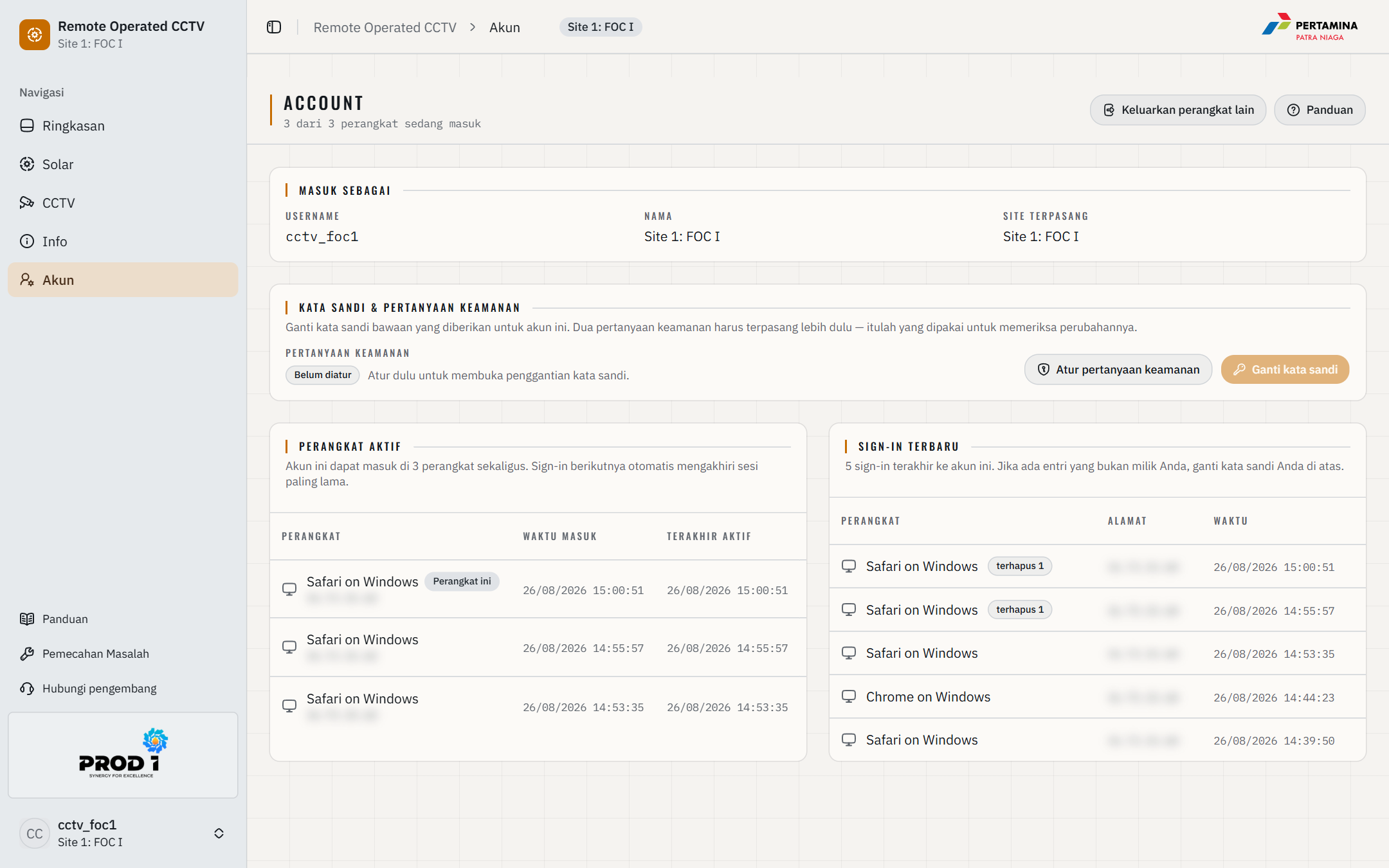
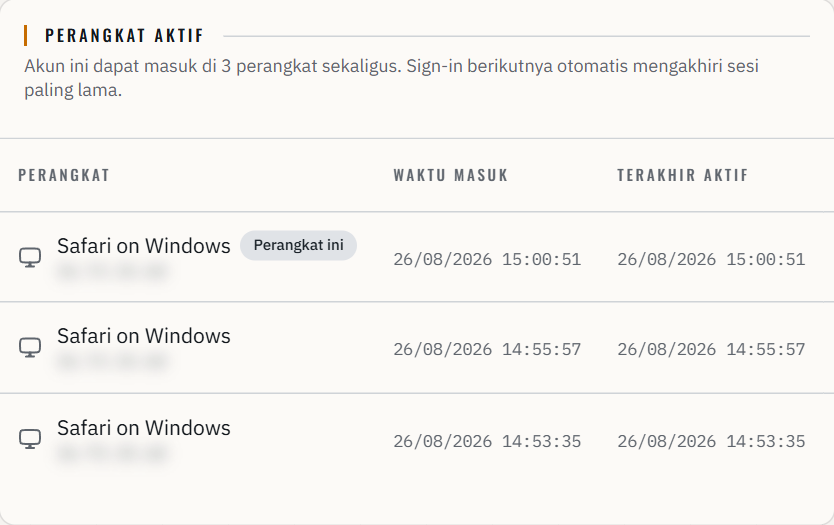
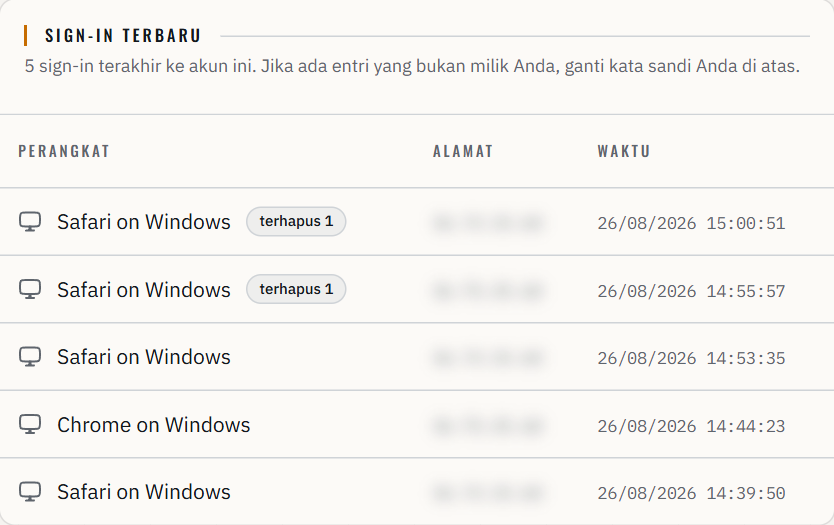
Satu akun bisa login di tiga perangkat sekaligus, misalnya ponsel dan komputer. Login pada perangkat keempat otomatis mengakhiri sesi yang paling lama, dan perangkat tersebut akan menerima notifikasi.
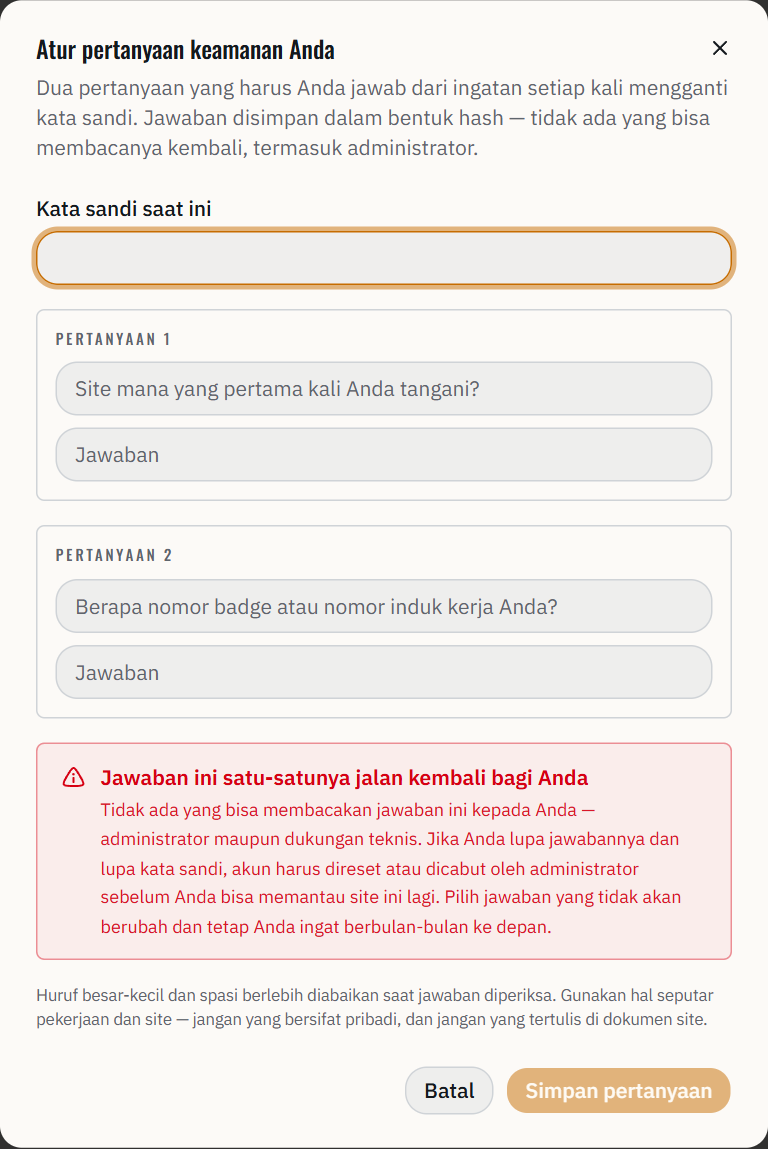
Selama jawaban pertanyaan keamanan belum dipasang, Anda tidak bisa mengganti kata sandi bawaan. Banner pengingat di bagian atas layar memang sengaja terus muncul — inilah satu-satunya jalan kembali ke akun tanpa bantuan administrator.
Menu pengguna di sudut kiri bawah mengatur bahasa (Indonesia atau Inggris) dan mode terang atau gelap. Pilihan itu tersimpan di perangkat yang Anda pakai dan tidak mengubah apa pun di lapangan.
Login ke Aplikasi
Langkah pertama setiap hari, beserta hal-hal yang sering membingungkan.
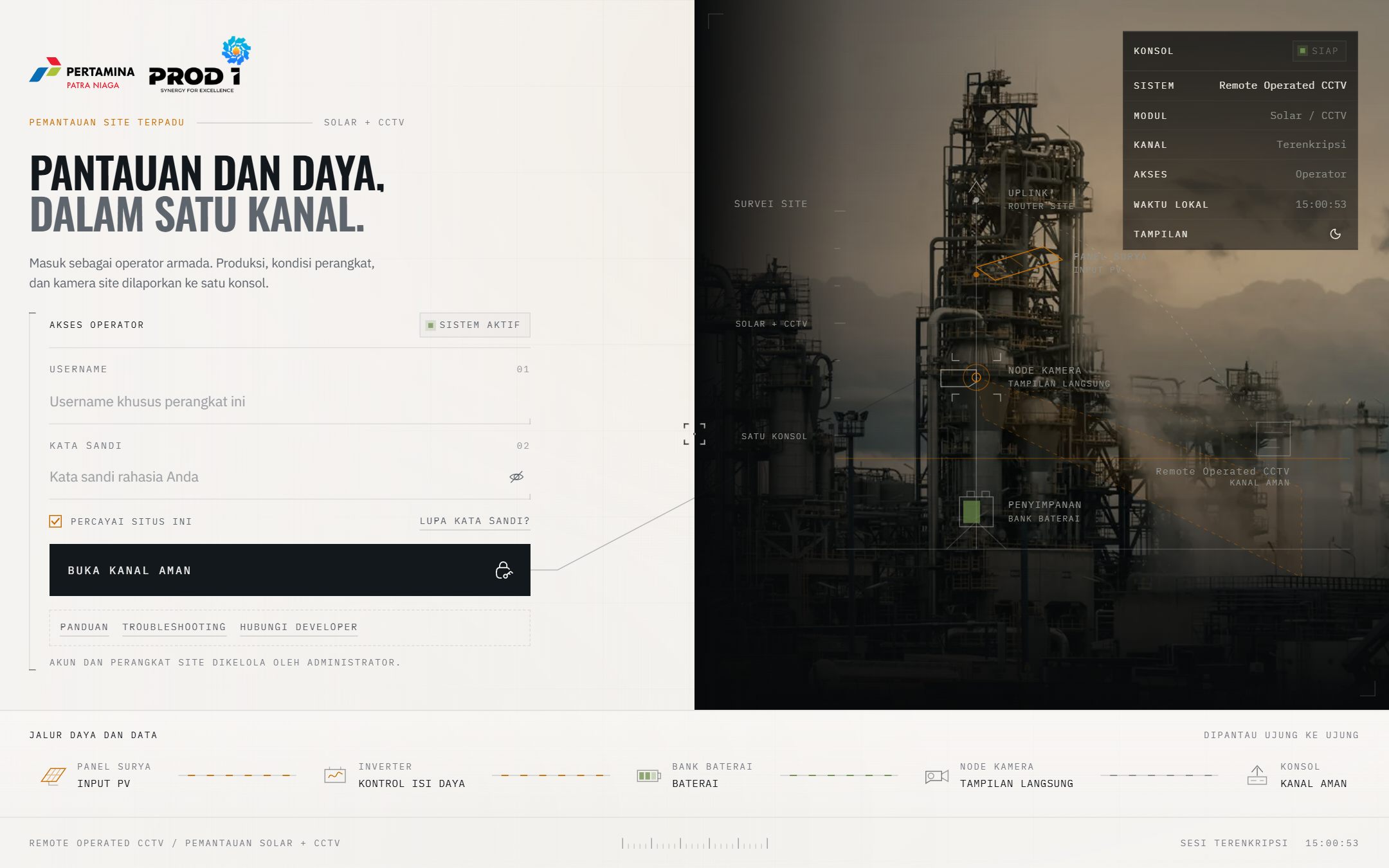
Cara login
Buka alamat aplikasi di browser. Jika Anda sudah pernah login di perangkat itu, halaman ini akan dilewati.
Isi kolom Username dengan nama pengguna dari administrator, misalnya cctv_foc1.
Isi kolom Kata sandi. Ikon mata di ujung kanan kolom menampilkan kata sandi jika Anda ragu ada salah ketik.
Biarkan Percayai situs ini tetap tercentang jika perangkat ini milik Anda sendiri, agar sesi bertahan lebih lama.
Tekan Buka kanal aman, lalu tunggu sampai prosesnya selesai.
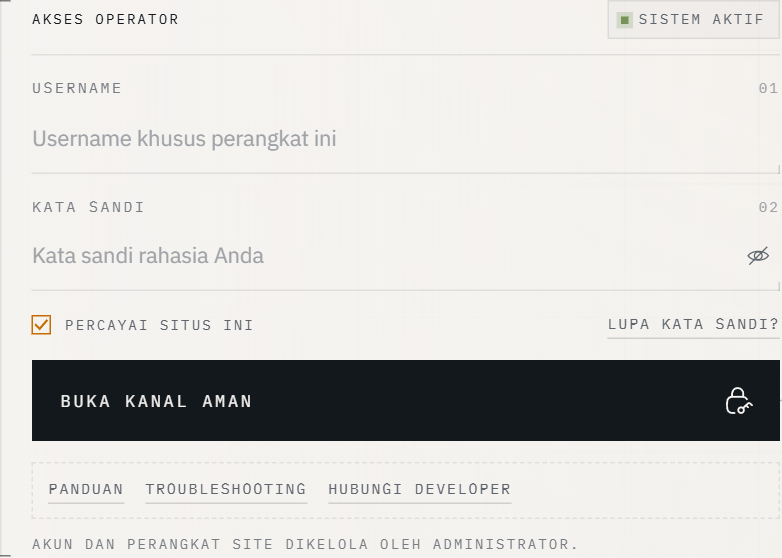
Mengenal Tata Letak
Menu di kiri, header di atas, menu pengguna di bawah. Ketiganya sama di semua halaman.
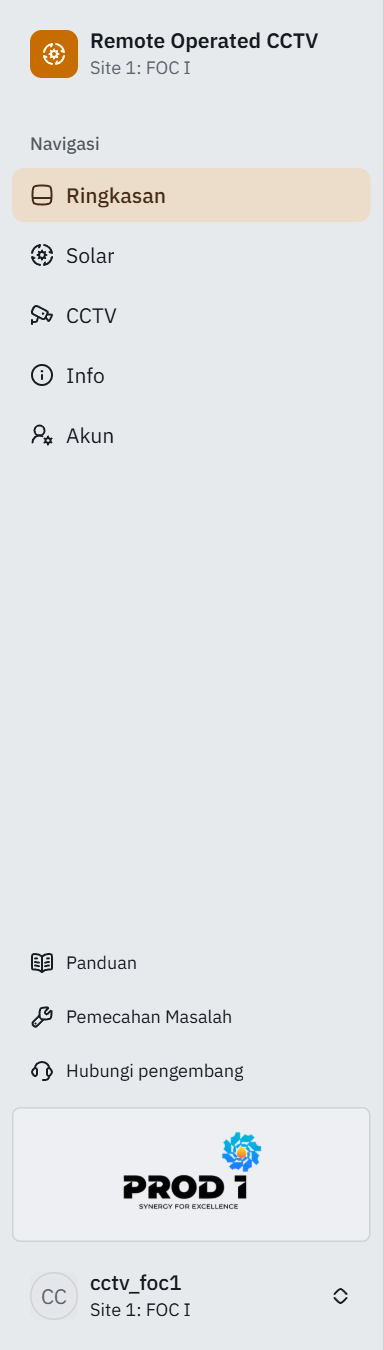
| Menu | Isinya |
|---|---|
| Ringkasan | Rangkuman satu layar: daya solar, baterai, kamera, perekam, router, data seluler, dan jumlah isu aktif. |
| Solar | Rincian sistem tenaga surya: alur energi, baterai, telemetri, alarm, dan data seluler. |
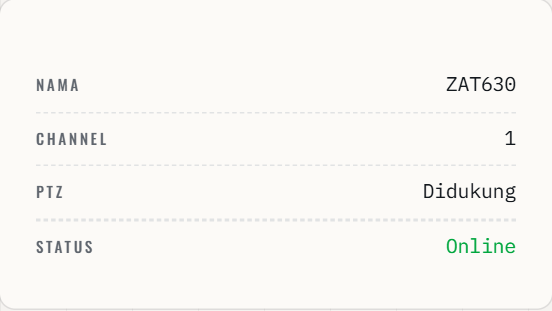
| CCTV | Live view kamera, kontrol arah kamera, pencarian recording, dan pemakaian data. |
| Router | Router 4G site: sinyal, Tunnel VPN, peta perangkat, data seluler per hari, dan Kotak masuk SIM. |
| Info | Lembar data akun dan perangkat untuk site Anda; hanya bisa dibaca. |
| Akun | Kata sandi, pertanyaan keamanan, dan daftar perangkat yang sedang login. |
| Panduan | Buku panduan yang sedang Anda baca ini. |
| Pemecahan Masalah | Langkah penanganan gangguan yang sering terjadi. |
| Hubungi pengembang | Jalur untuk melaporkan gangguan yang tidak bisa Anda selesaikan sendiri. |

Setiap halaman data — Ringkasan, Solar, CCTV, Router, Info, dan Akun — ditutup oleh baris Koneksi Situs di kaki halaman. Baris itu selalu sama di mana pun Anda berada, sehingga Anda tidak perlu kembali ke Ringkasan hanya untuk tahu apakah site sedang terjangkau. Cara membacanya dijelaskan di akhir Bagian 04.
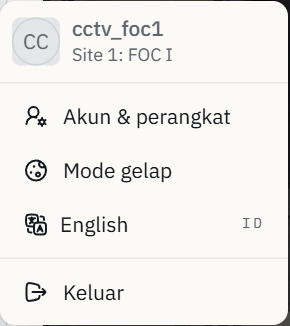
Mengganti bahasa atau tema
Tekan nama akun Anda di sudut kiri bawah.
Pilih Mode gelap untuk beralih ke tampilan gelap, atau tekan sekali lagi untuk kembali terang.
Pilih baris bahasa untuk berpindah antara Bahasa Indonesia dan English.
Pilih Keluar jika Anda sudah selesai dan perangkat itu dipakai bersama orang lain.
Halaman Ringkasan
Halaman pertama setelah login. Menjawab satu pertanyaan: apakah site ini sedang baik-baik saja?
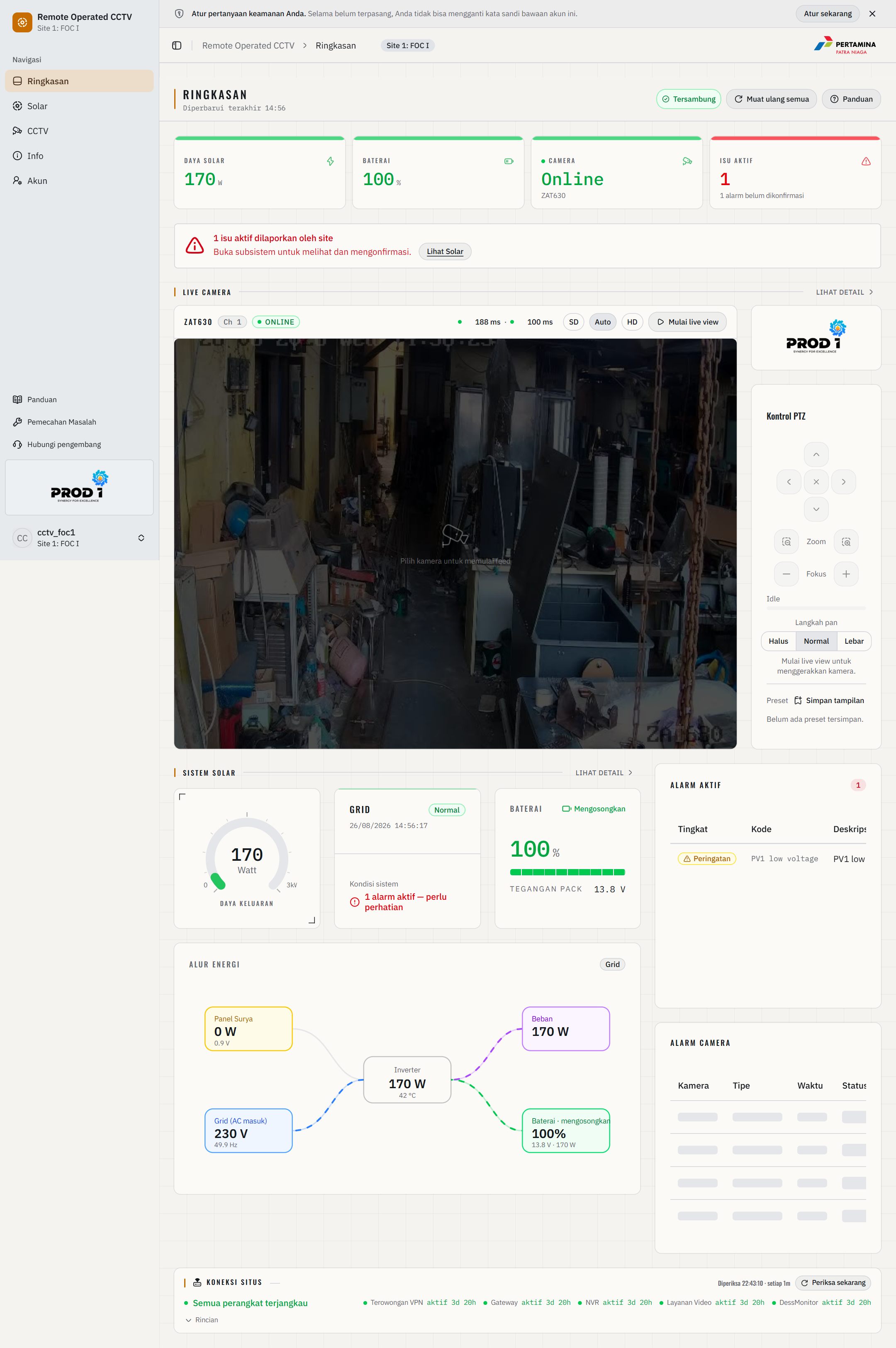
Empat kartu di baris teratas adalah ringkasan tercepat. Garis warna di atas setiap kartu menegaskan kondisinya: hijau berarti normal, kuning berarti perlu diperhatikan, merah berarti perlu tindakan.

| Kartu | Cara membacanya |
|---|---|
| Daya Solar | Daya yang sedang dikeluarkan inverter, dalam watt. Angka kecil pada malam hari itu normal. |
| Baterai | Sisa daya baterai dalam persen, disertai keterangan sedang mengisi atau memakai daya. |
| Camera | Kondisi kamera beserta namanya. Online berarti kamera terjangkau; Offline berarti tidak. |
| Isu Aktif | Jumlah masalah yang sedang dilaporkan site. Angka nol adalah kondisi yang diharapkan. |

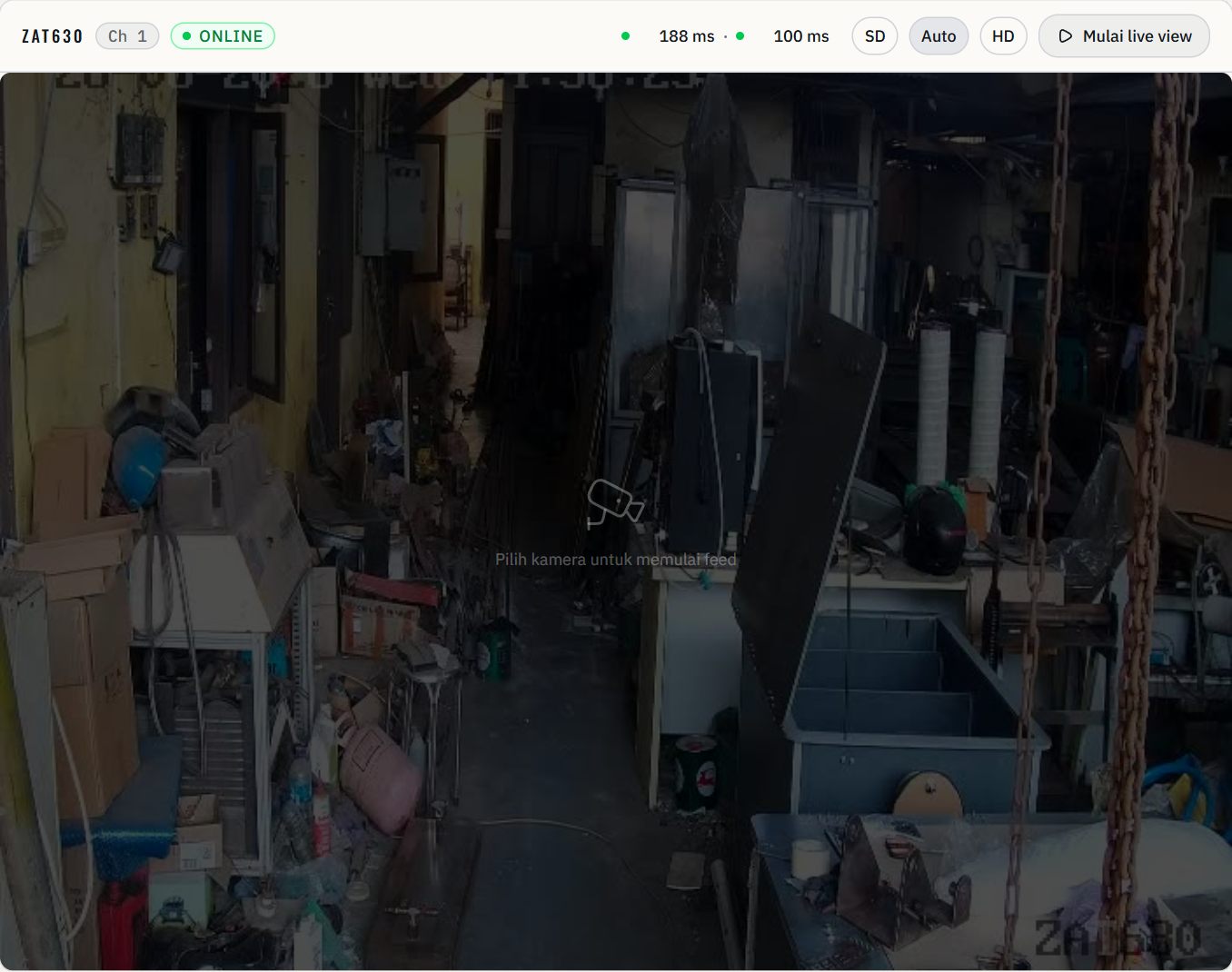
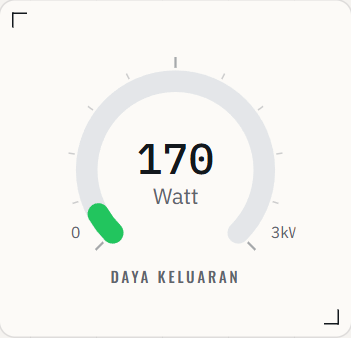
Di bawah Live Camera, halaman terbagi dua kolom. Kolom lebar memuat ringkasan solar, diagram Alur Energi, lalu kartu Data seluler. Kolom sempit di kanan memuat daftar alarm solar, Alarm Camera, lalu dua kartu yang membaca perangkat di lapangan: Perekam serta Router & koneksi.
| Kartu | Cara membacanya |
|---|---|
| Perekam | Kondisi NVR: sisa ruang disk, apakah Rekaman hari ini Terjadwal, selisih Jam perekam, dan berapa lama perekam sudah berjalan. Kamera Online belum tentu sedang direkam — kartu inilah yang menjawabnya. |
| Router & koneksi | Sinyal 4G beserta operatornya, status Tunnel VPN, Data hari ini, dan Penyimpanan SMS pada SIM. Tombol Detail membuka halaman Router. |
| Data seluler | Pemakaian data seluler router per hari selama sepekan terakhir, ↓ unduh dan ↑ unggah, dengan batang yang diskalakan terhadap hari tersibuk. Tombol Detail membuka halaman Router. |

Membaca baris Koneksi Situs di kaki halaman
Dalam keadaan tertutup, baris ini hanya berisi judul Koneksi Situs, kesimpulan kondisi site — misalnya Semua perangkat terjangkau — dan waktu pemeriksaan terakhir.
Tekan judul Koneksi Situs untuk membukanya. Muncul deretan titik perangkat serta daftar Yang berfungsi saat ini: Video langsung, Peringatan kamera, dan Pembacaan solar.
Tekan Rincian untuk melihat Riwayat koneksi (24 jam, 7 hari, atau 14 hari), baris per perangkat, dan Perubahan terakhir.
Tombol muat ulang di ujung kanan baris menjalankan pemeriksaan koneksi saat itu juga, tanpa menunggu jadwal berikutnya.
Halaman Solar
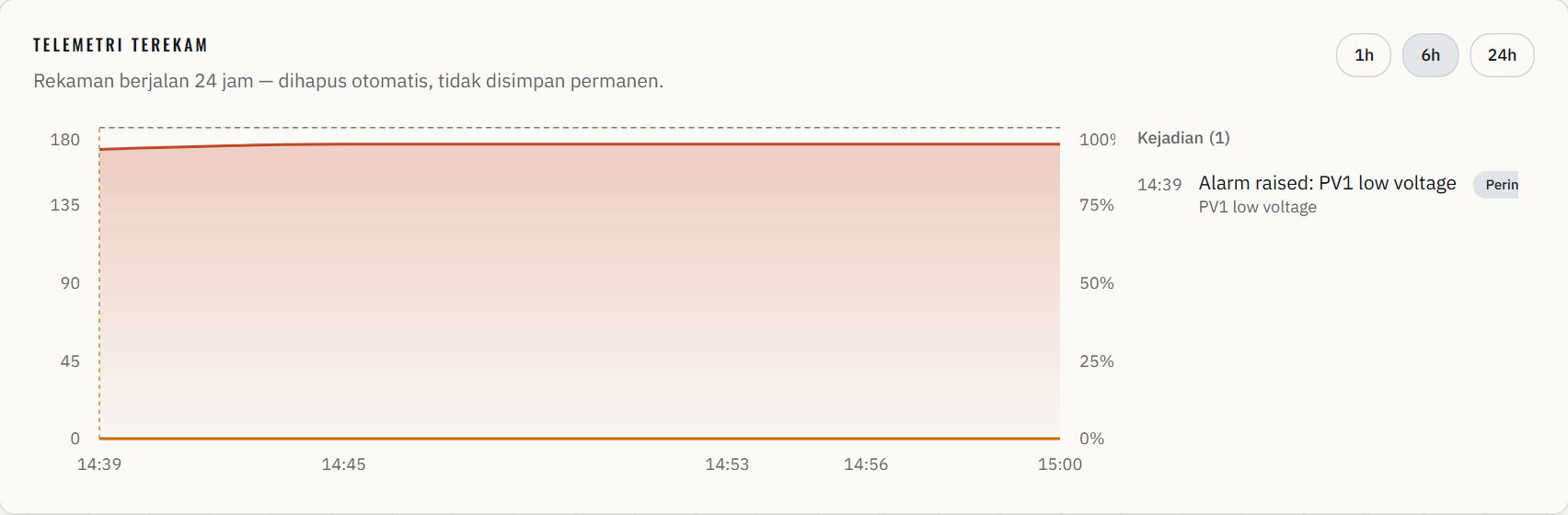
Rincian sistem tenaga surya: dari mana daya datang, ke mana perginya, dan apa yang sedang dikeluhkan sistem.
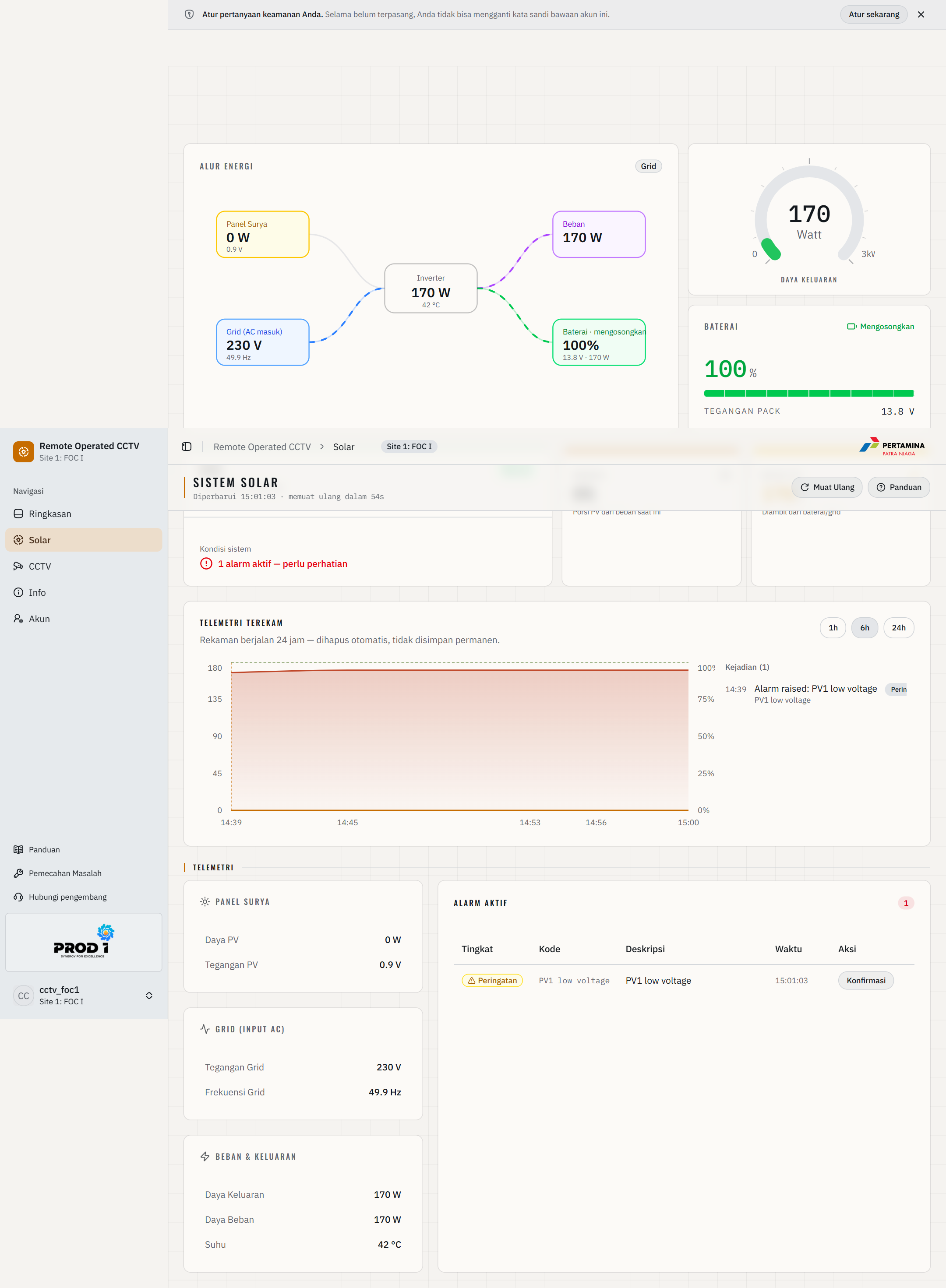
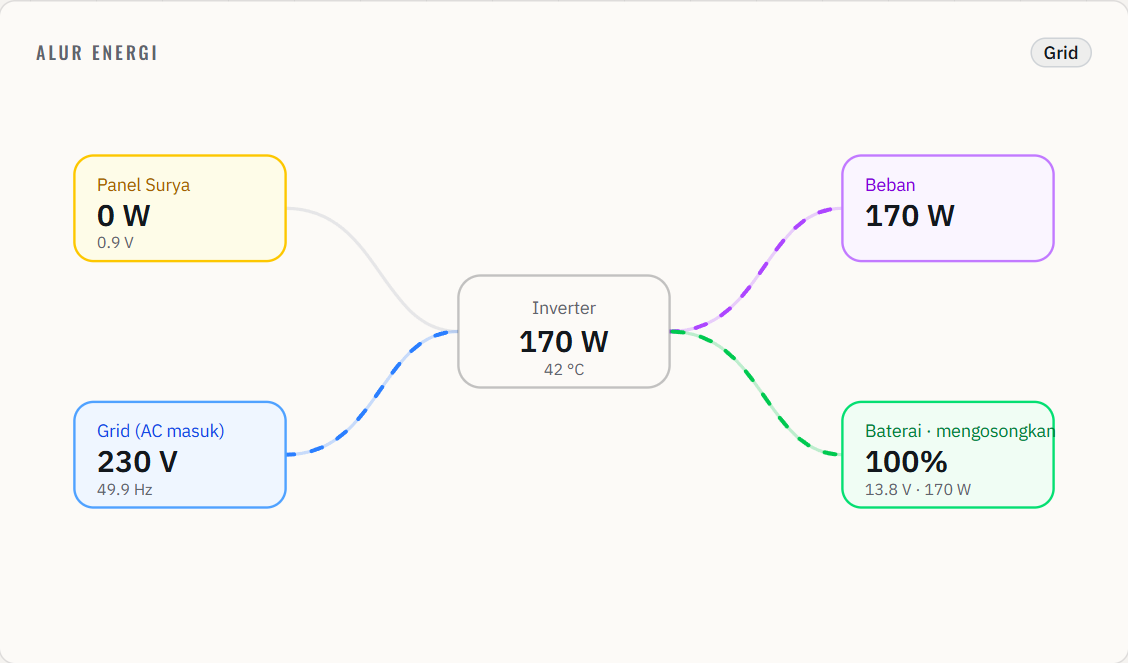
| Kotak pada diagram | Artinya |
|---|---|
| Panel Surya | Daya dan tegangan yang masuk dari rangkaian panel. Nol pada malam hari atau saat panel belum terpasang. |
| Grid (AC masuk) | Tegangan dan frekuensi listrik jaringan yang masuk ke inverter. |
| Inverter | Daya yang sedang dikeluarkan beserta suhu perangkat. |
| Beban | Daya yang sedang dipakai peralatan di lapangan. |
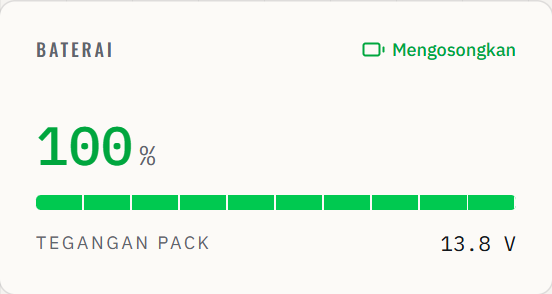
| Baterai | Sisa daya, tegangan, dan arah aliran: mengisi atau memakai daya. |
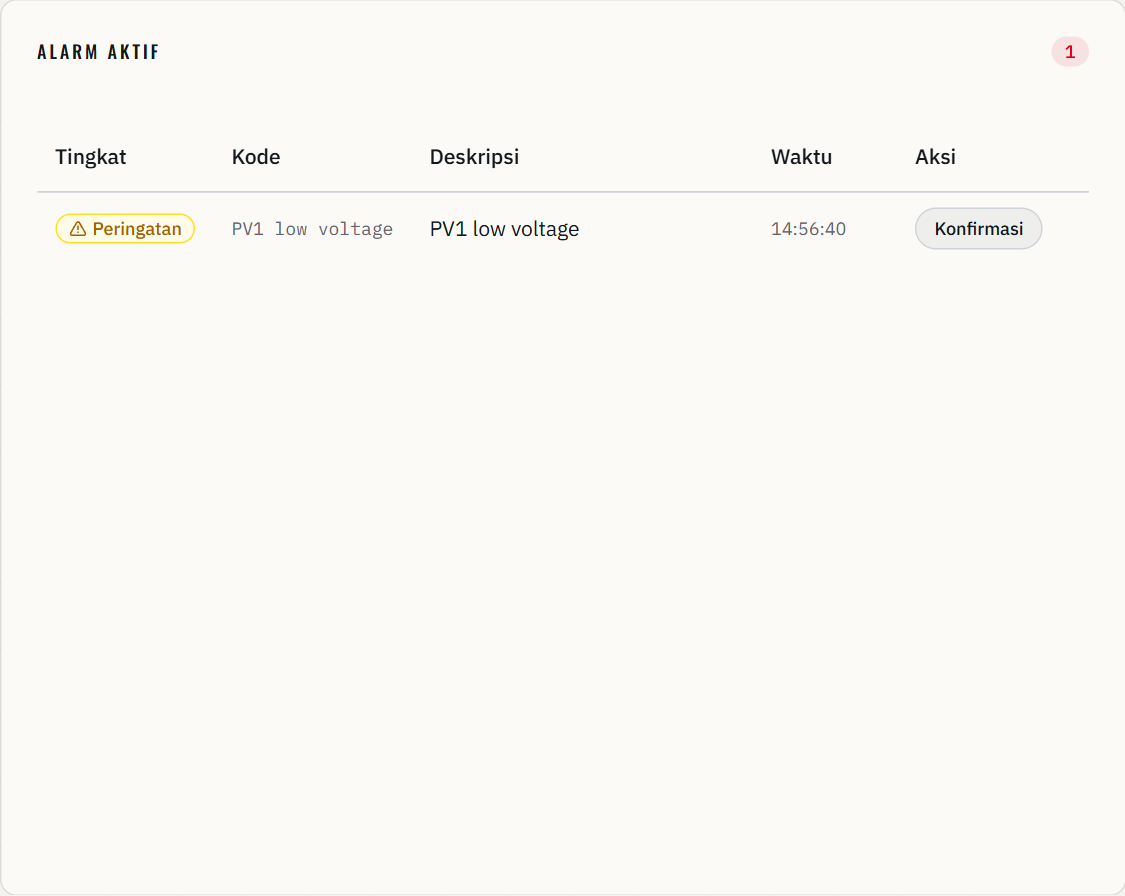
Mengonfirmasi alarm
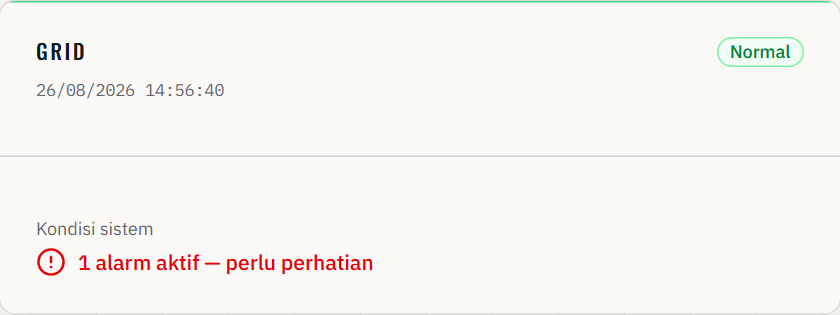
Baca baris alarm sampai Anda paham apa yang dilaporkan, terutama kolom Deskripsi dan Waktu.
Tekan Konfirmasi di ujung kanan baris tersebut.
Baris itu tidak lagi dihitung sebagai belum dikonfirmasi, dan angka Isu Aktif di halaman Ringkasan ikut berkurang.
Paling bawah terdapat kartu Data seluler — kartu yang sama dengan di halaman Ringkasan, berisi pemakaian data router per hari selama sepekan terakhir. Angkanya dibaca dari router, bukan dari inverter, sehingga kartu ini tetap bisa tampil atau gagal sendiri tanpa memengaruhi angka solar di atasnya. Tombol Detail membuka halaman Router.
Halaman CCTV
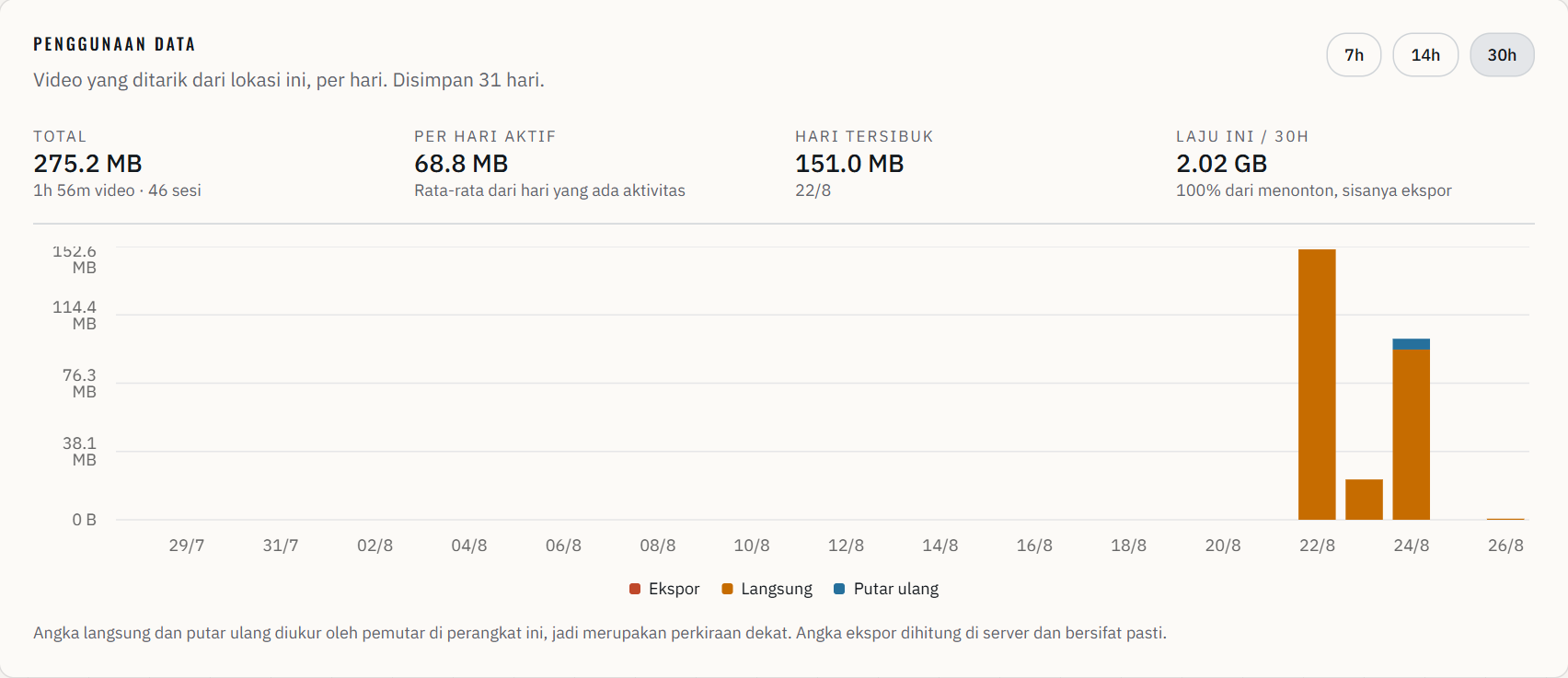
Menonton kamera, menggerakkan kamera, mencari recording, dan memantau pemakaian kuota data.
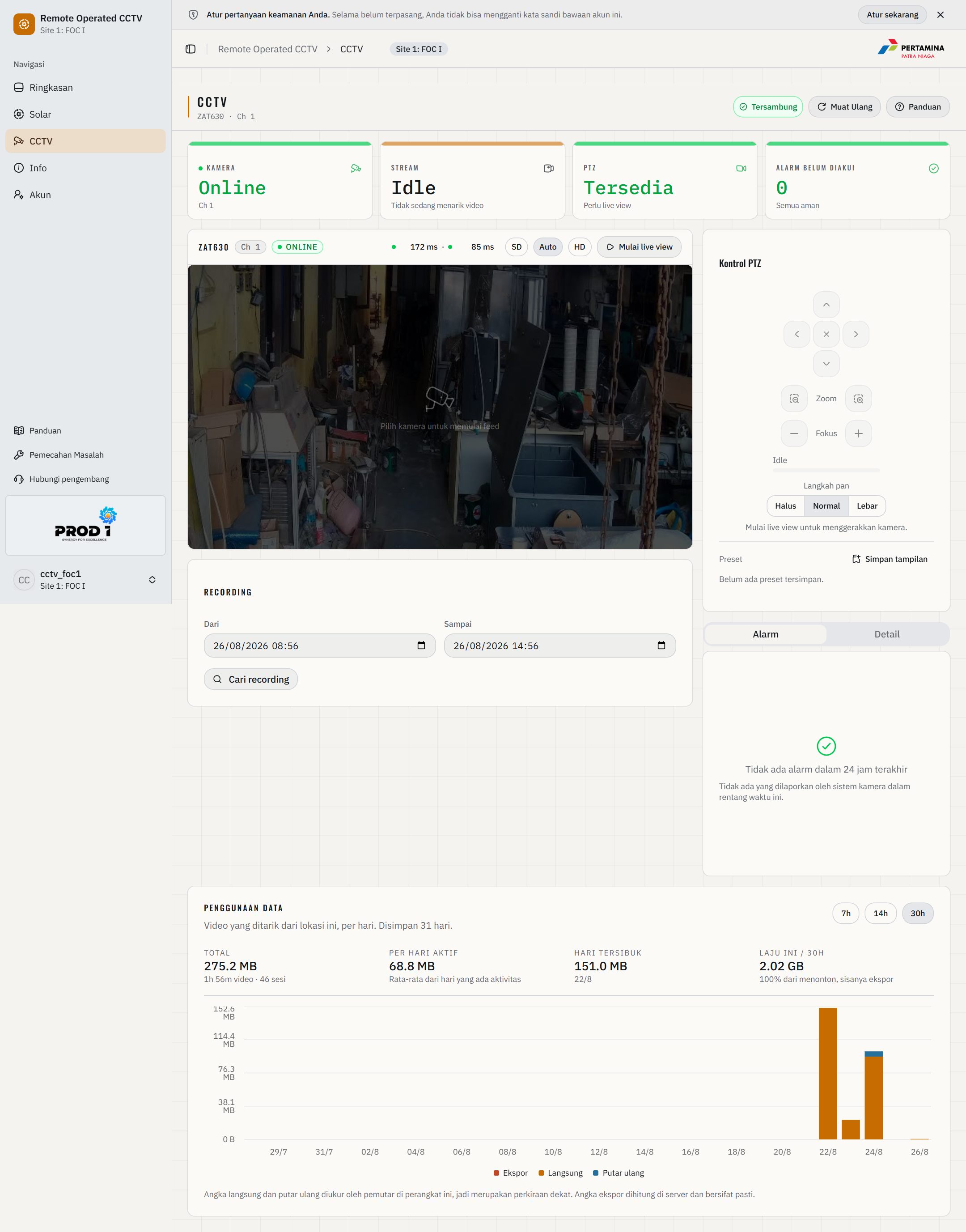

Menjalankan live view
Tekan Mulai live view di sudut kanan atas panggung kamera.
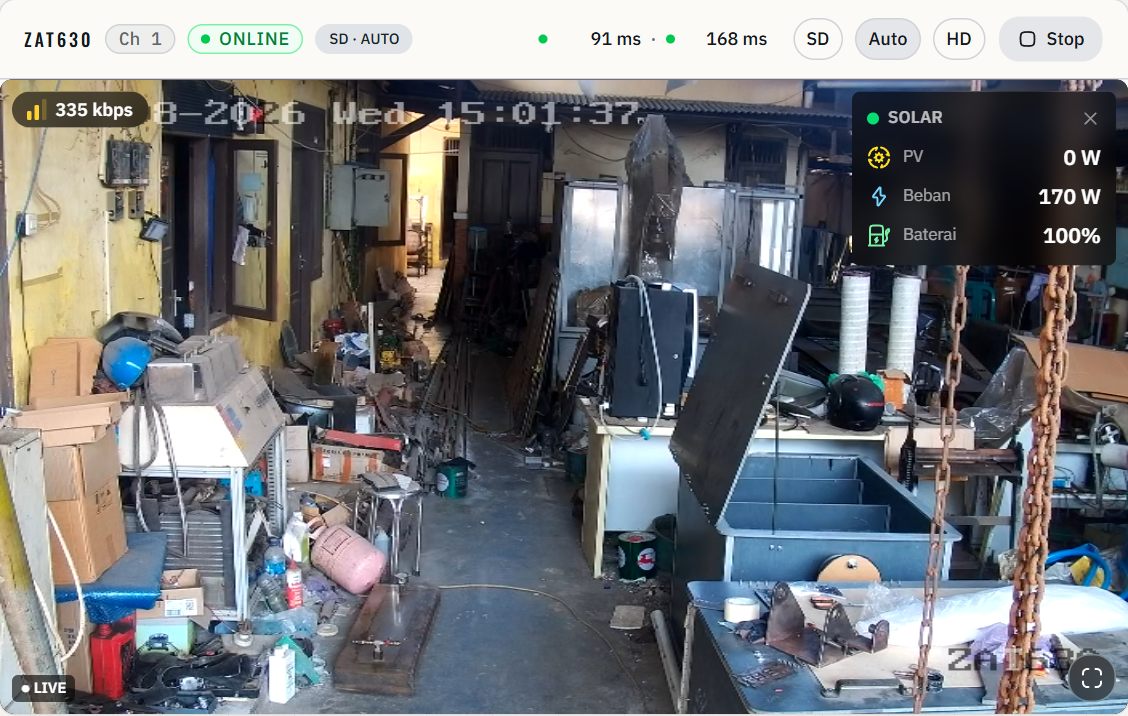
Tunggu beberapa detik sampai gambar bergerak dan penanda LIVE muncul di sudut kiri bawah.
Setelah selesai menonton, tekan Stop. Menghentikan streaming menghemat kuota data site.
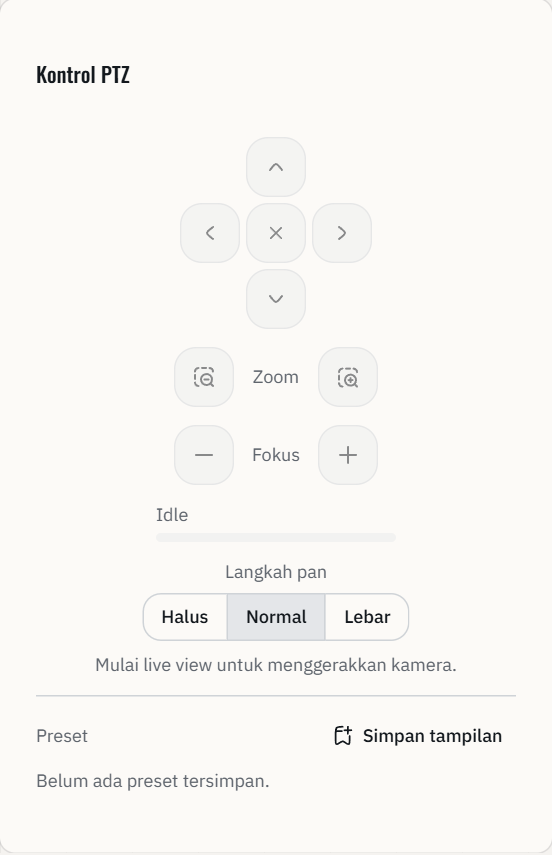
Menggerakkan kamera
Jalankan live view terlebih dahulu; kontrol PTZ tidak aktif selama streaming belum berjalan.
Tentukan besar langkah lewat pilihan Halus, Normal, atau Lebar. Halus untuk membidik detail, Lebar untuk berpindah cepat.
Tekan tombol panah untuk menggeser kamera, atau tombol Zoom untuk memperbesar dan memperkecil.
Tekan tombol silang di tengah untuk menghentikan gerakan.

Menyimpan dan memakai preset
Arahkan kamera ke sudut yang Anda inginkan menggunakan kontrol PTZ.
Tekan Simpan tampilan, lalu beri nama yang mudah dikenali, misalnya Gerbang Depan.
Lain kali, tekan nama preset tersebut untuk mengembalikan kamera ke sudut yang sama.
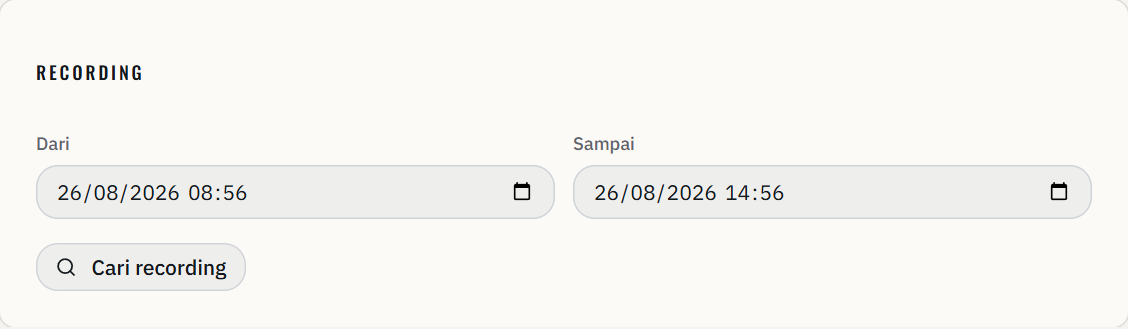
Mencari recording lama
Isi kolom Dari dengan tanggal dan jam awal kejadian yang Anda cari.
Isi kolom Sampai dengan tanggal dan jam akhirnya. Rentang yang sempit membuat pencarian jauh lebih cepat.
Tekan Cari recording, lalu pilih salah satu hasil untuk memutarnya.

Halaman Router
Jalur 4G yang dilalui seluruh data site: sinyal, tunnel, perangkat yang terhubung, pemakaian data, dan Kotak masuk SIM.
Halaman Router membaca router 4G di lapangan secara langsung. Keterangan di bawah judul halaman menyebut jam terakhir router dibaca; tombol Muat ulang di header membacanya sekali lagi. Seluruh halaman ini hanya untuk dibaca, kecuali Kotak masuk SIM — pengaturan router adalah wewenang administrator.
| Kartu | Isinya |
|---|---|
| Koneksi seluler | Sinyal (Sangat baik sampai Tanpa sinyal, beserta angka RSRP dan SINR), Operator, status Tunnel VPN, Data hari ini, Penyimpanan SMS, Waktu aktif router, Jam router, Model, dan Firmware. |
| Peta perangkat | Susunan jaringan site seperti yang dilihat router: 4G dan VPN di atas, router di tengah, lalu perangkat di bawahnya. Kamera tampil menggantung di bawah NVR karena mendapat daya dan jaringan dari NVR. |
| Data seluler | Pemakaian data per hari selama sepekan terakhir dari penghitung bawaan router, ↓ unduh dan ↑ unggah. Live view adalah pemakai terbesar. |
| Kotak masuk SIM | SMS yang diterima kartu SIM router, lengkap dengan Tanggal, Pengirim, dan Pesan. |
| Status pada Peta perangkat | Artinya |
|---|---|
| Kabel / Wi-Fi | Perangkat sedang terlihat oleh router, tersambung lewat kabel LAN atau Wi-Fi. |
| Tidak terlihat | Router pernah mengenali perangkat ini, tetapi saat ini tidak melihatnya — periksa daya dan kabelnya. |
| Di belakang NVR | Router tidak bisa melihat perangkat ini secara langsung. Status kamera dibaca di halaman CCTV. |
Kotak masuk SIM berada di samping kartu Data seluler. Bilah Penyimpanan SMS di atas tabel menunjukkan berapa slot SIM yang sudah terisi. Tabel pesan bisa digulir di tempat, dan menampilkan sepuluh pesan per halaman; tombol Sebelumnya, nomor halaman, dan Berikutnya di bawah tabel berpindah antarhalaman.
Menghapus SMS
Untuk satu pesan, tekan Hapus di ujung kanan barisnya. Tombol ini hanya muncul pada pesan yang sudah dibaca.
Untuk semua pesan yang sudah dibaca sekaligus, tekan Hapus yang dibaca. Angka di dalam tombol adalah jumlah pesan yang akan terhapus.
Untuk pesan lama saja, pilih umur pesan — Lebih dari 7, 30, atau 90 hari — lalu tekan Hapus yang lama. Hanya pesan yang sudah dibaca yang ikut terhapus.
Baca kalimat pada dialog Hapus pesan?, lalu tekan Hapus untuk melanjutkan atau Batal untuk mengurungkan.
Halaman Info
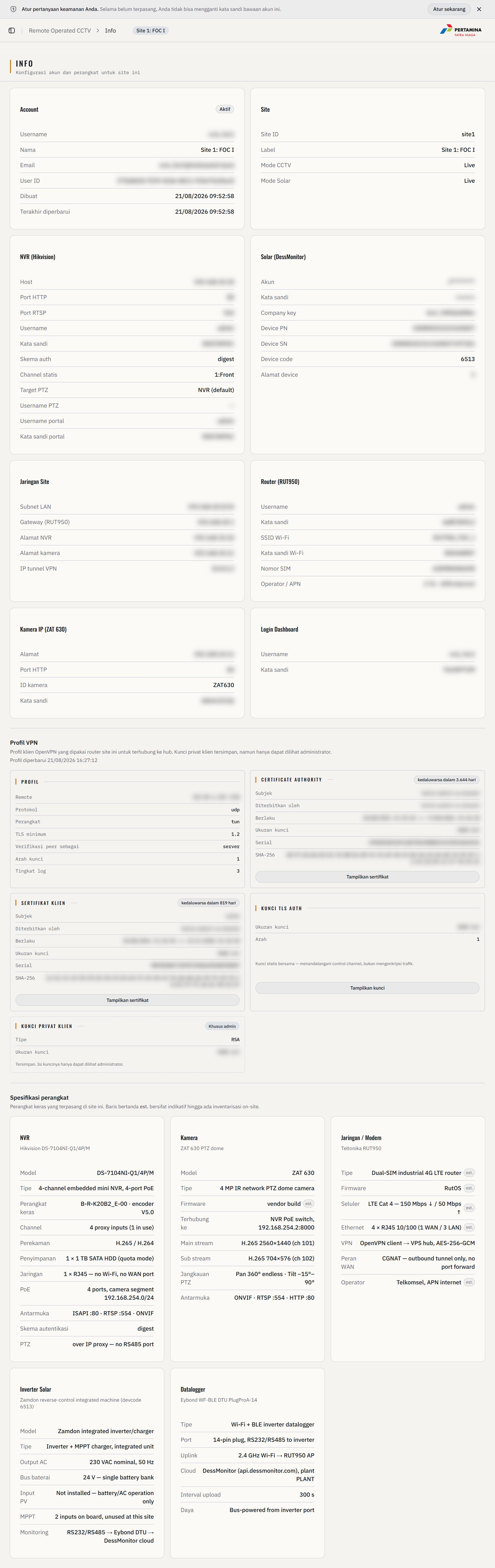
Lembar data site Anda — hanya untuk dibaca, tidak ada yang bisa diubah dari sini.
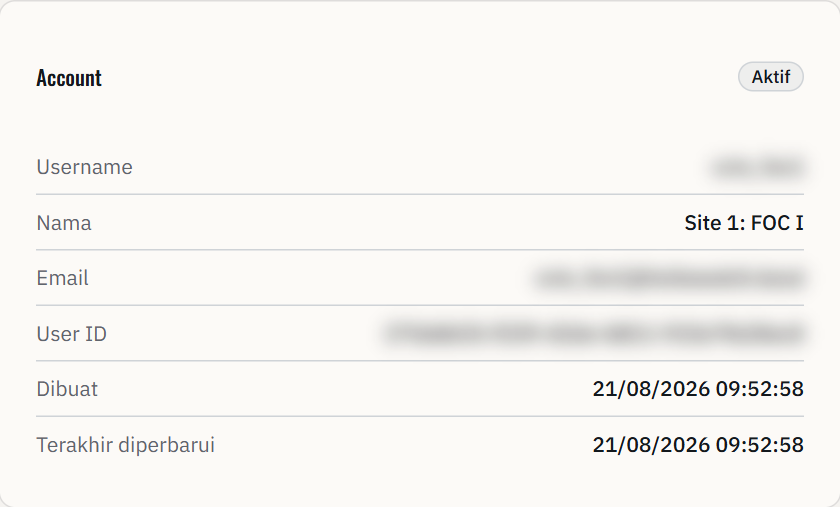
Halaman Info memuat identitas akun, identitas site, kredensial perangkat, alamat jaringan, profil VPN, dan lembar spesifikasi perangkat keras yang terpasang. Halaman ini berguna ketika Anda perlu menyebutkan angka atau nama perangkat secara persis saat melapor. Lembar spesifikasi di bagian paling bawahnya dibahas pada Bagian 10.
Halaman Akun
Kata sandi, pertanyaan keamanan, dan daftar perangkat yang sedang memakai akun Anda.


Memasang pertanyaan keamanan
Tekan Atur pertanyaan keamanan.
Pilih dua pertanyaan yang berbeda, lalu isi jawabannya masing-masing.
Pilih jawaban yang tidak berubah seiring waktu dan tidak diketahui rekan kerja Anda.
Tekan Simpan. Setelah tersimpan, tombol Ganti kata sandi menjadi aktif.
Mengganti kata sandi
Pastikan pertanyaan keamanan sudah terpasang.
Tekan Ganti kata sandi, lalu jawab pertanyaan keamanan sebagai verifikasi.
Masukkan kata sandi baru dua kali, lalu simpan.
Sesi di perangkat lain akan berakhir dan harus login kembali dengan kata sandi baru.
Mengenal Unit di Lapangan
Mengenali unit pemantauan portabel versi bersurya beserta komponennya. Cara memasang dan mengoperasikannya ada di Bagian 11.
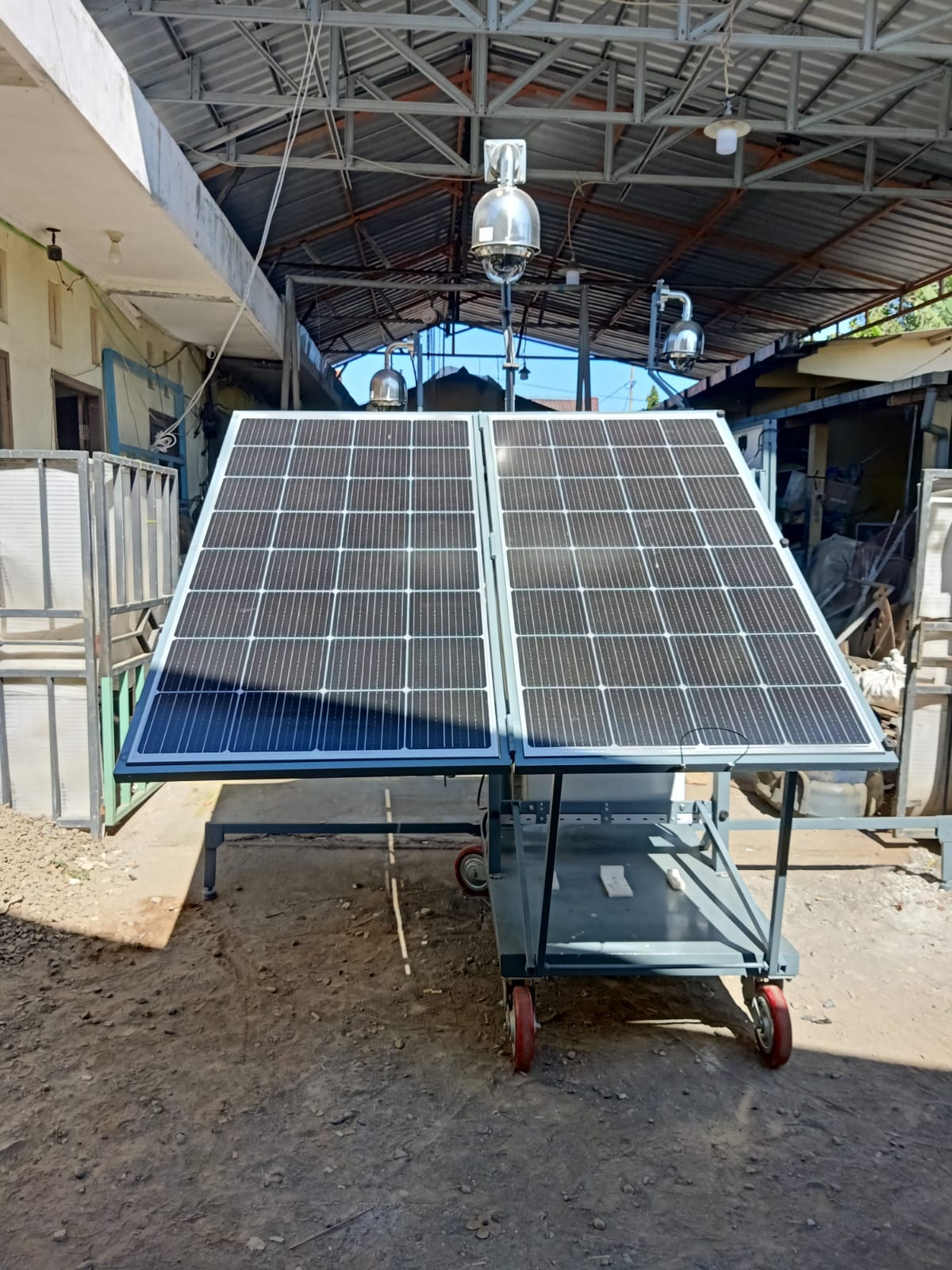
Unit pemantauan site versi bersurya adalah troli portabel yang membawa seluruh sistem CCTV, kelistrikan, dan komunikasi dalam satu kesatuan yang bisa dipindahkan. Unit ini dirancang untuk penempatan di lapangan tanpa memerlukan infrastruktur listrik permanen: panel surya dan dua baterainya cukup untuk bekerja mandiri, sementara colokan AC 220V tetap tersedia sebagai penunjang bila listrik di lokasi ada. Bagian ini memperkenalkan bentuk dan nama setiap komponennya; urutan pemasangannya dibahas di Bagian 11.
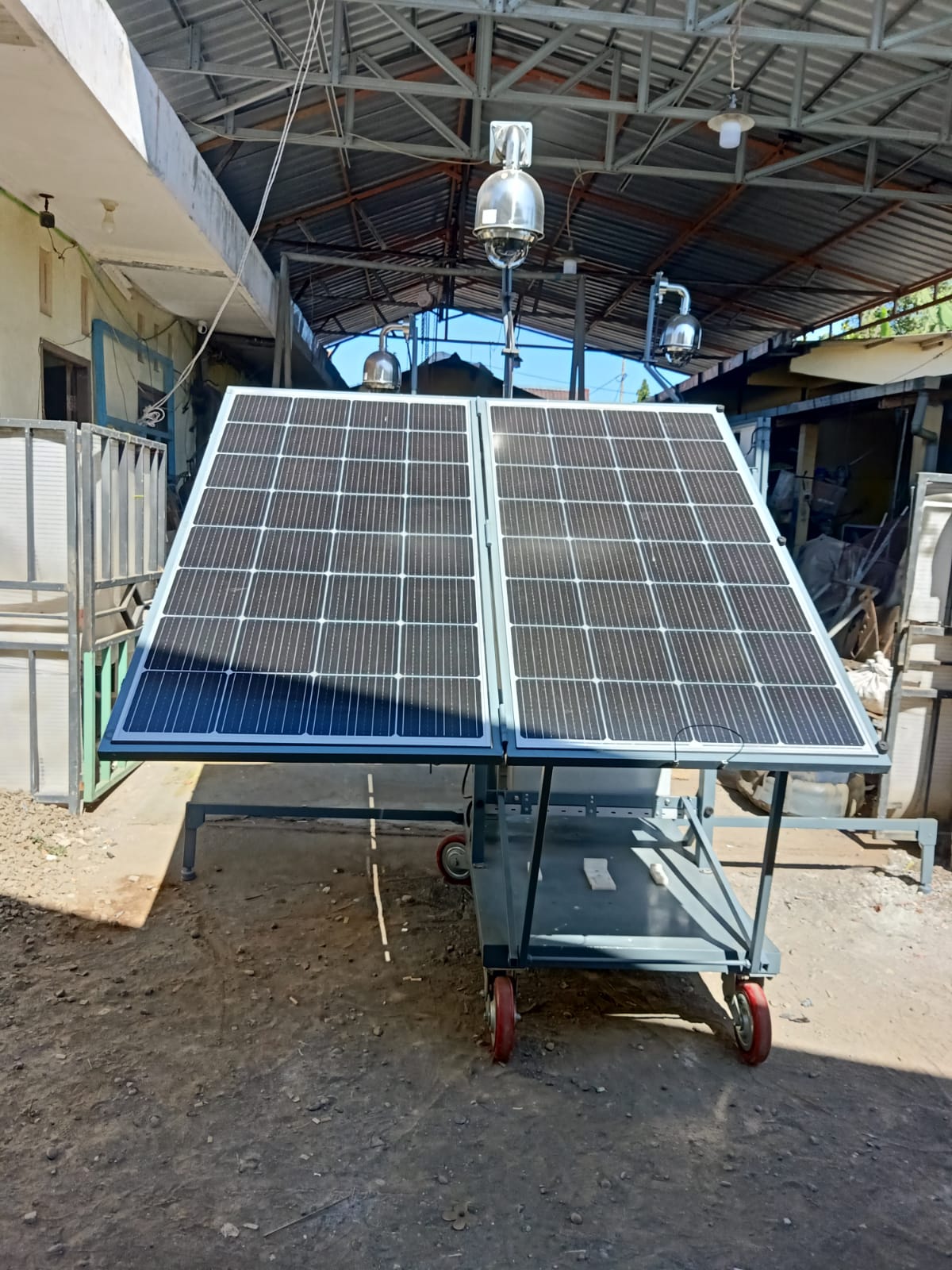
Dua kamera dome PTZ (pan-tilt-zoom) di puncak tiang teleskopik. Digerakkan dari halaman CCTV di aplikasi dan mampu memperbesar objek dari jarak jauh.
Tiang baja yang dinaikkan dan diturunkan dengan tuas engkol. Saat turun penuh, kamera sejajar dengan atap kotak panel — posisi aman untuk transportasi dan cuaca buruk.
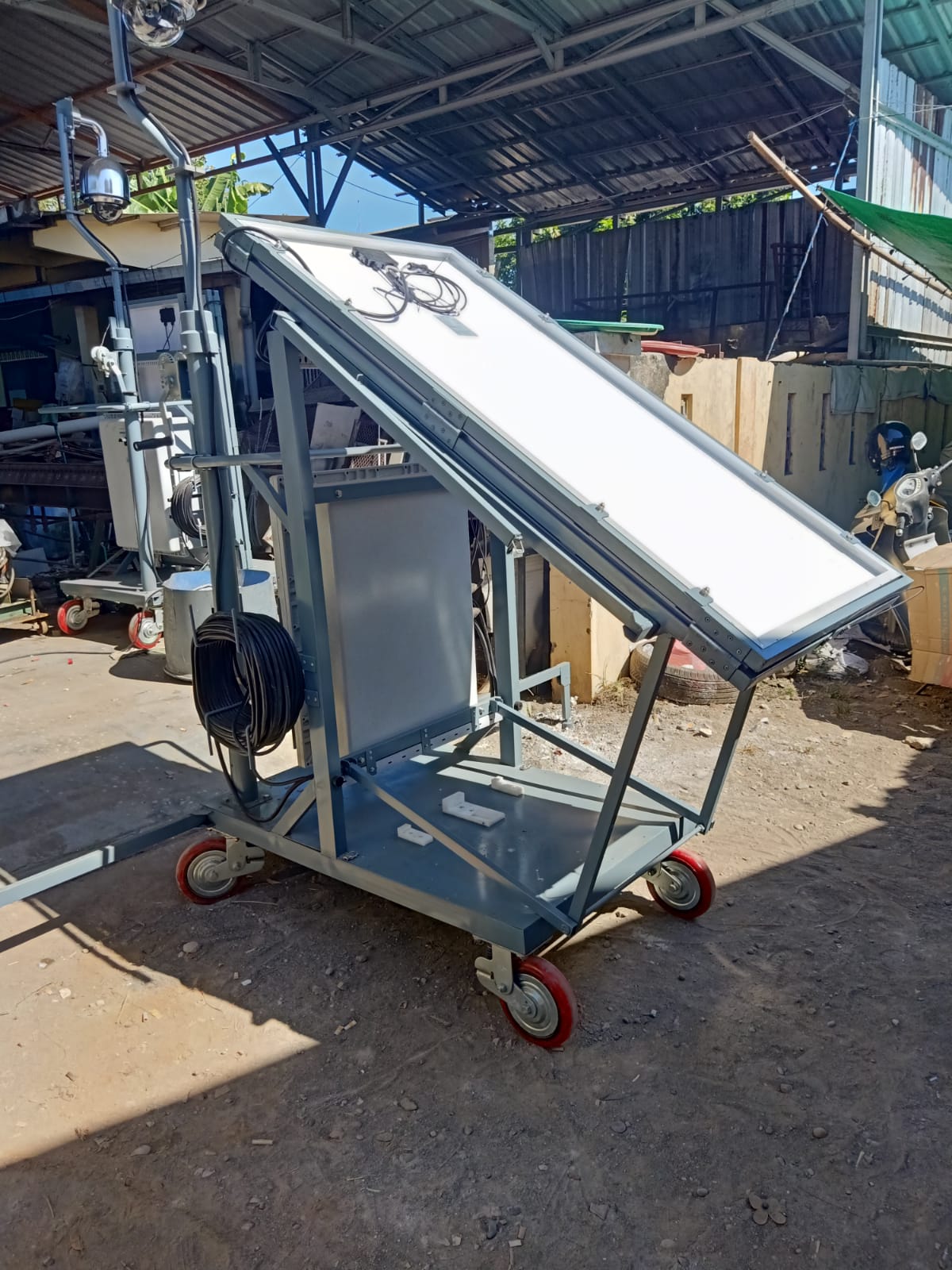
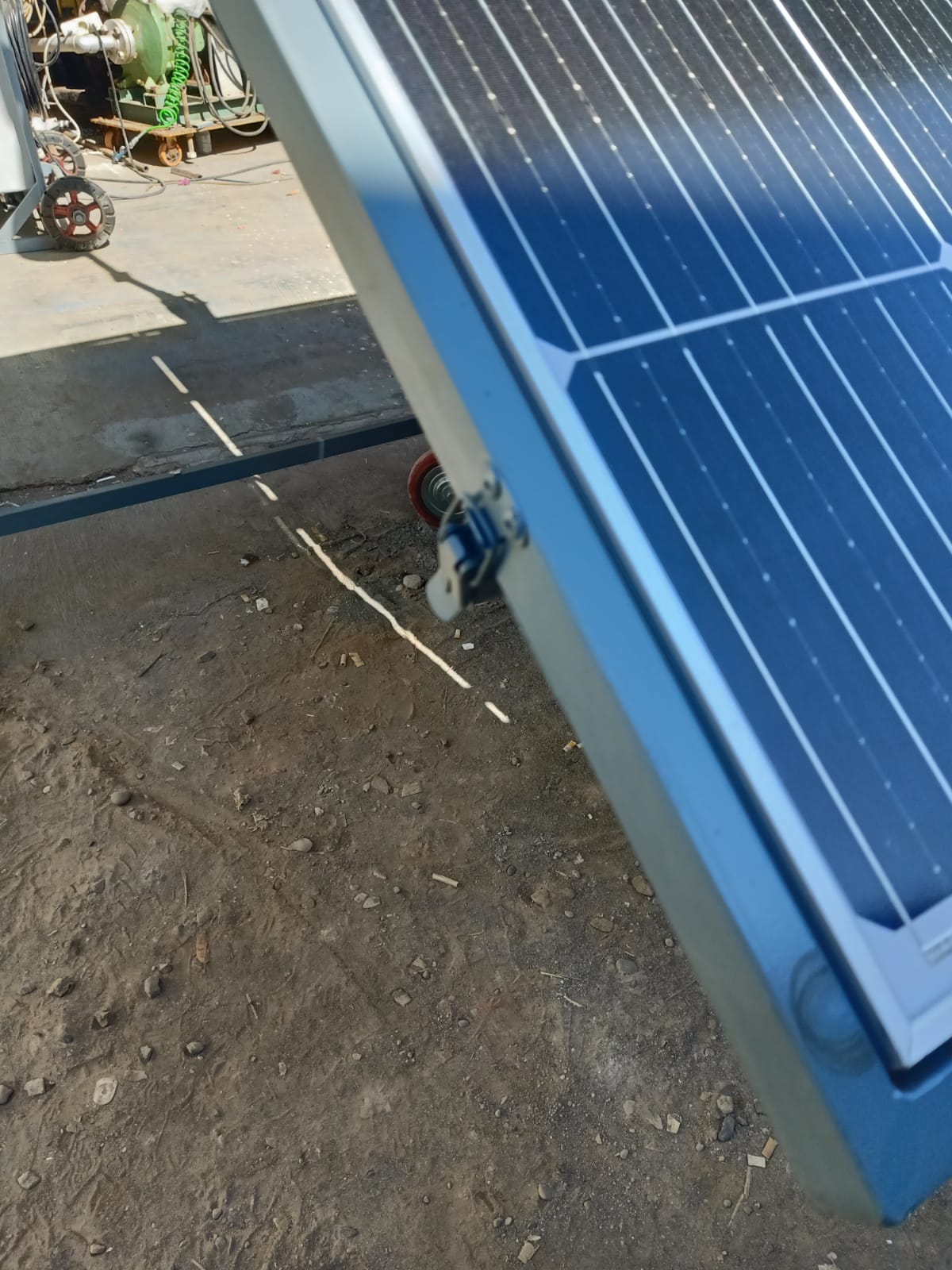
Dua panel fotovoltaik berengsel di sisi kiri dan kanan tiang. Dilipat vertikal untuk transportasi, dibuka miring menghadap matahari saat beroperasi.
Lemari logam kedap cuaca di bagian tengah, berisi inverter, NVR, router, datalogger, dan baterai. Tombol daya utama (MCB merah) berada di pintu depan.
Rangka baja dengan empat roda caster heavy duty, masing-masing dilengkapi rem pengunci.
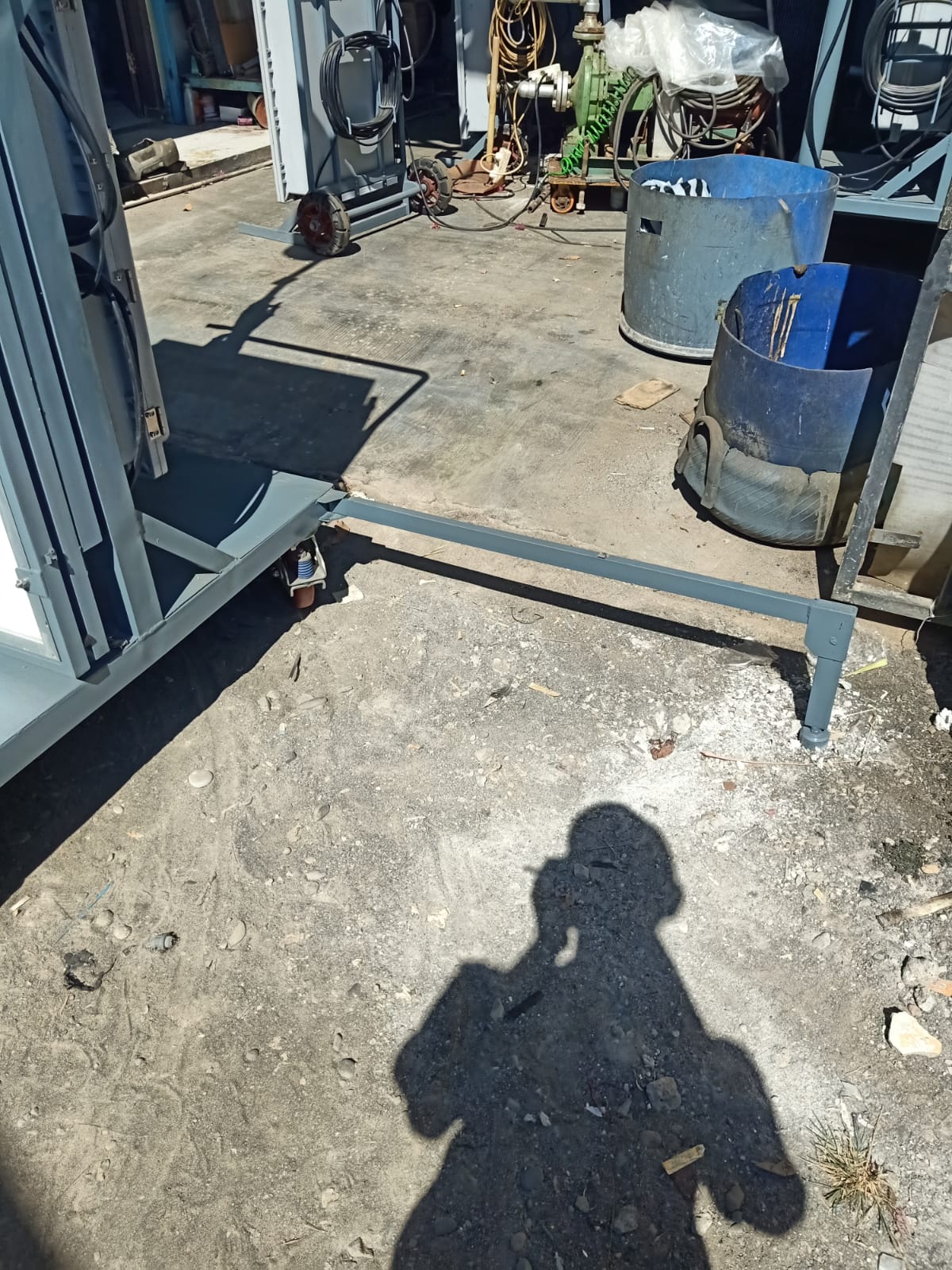
Dua kaki baja kotak berbentuk T yang ditarik keluar mendatar dari rangka. Kaki inilah yang mencegah unit terbalik saat tiang ditegakkan.
Pengait logam dan engsel pada rangka panel surya. Panel dikunci pada dua posisi — terlipat untuk transportasi dan terbuka untuk beroperasi — sehingga membuka panel selalu dimulai dari pengaitnya, bukan dari mendorong permukaan panel.
Gulungan kabel ekstensi di samping kotak panel. Dicolokkan ke listrik 220V bila tersedia di lokasi, sehingga unit dapat mengisi baterai dan bekerja tanpa bergantung pada matahari — berguna saat cuaca mendung berhari-hari atau unit ditempatkan di bawah naungan.
Empat sudut pandang unit
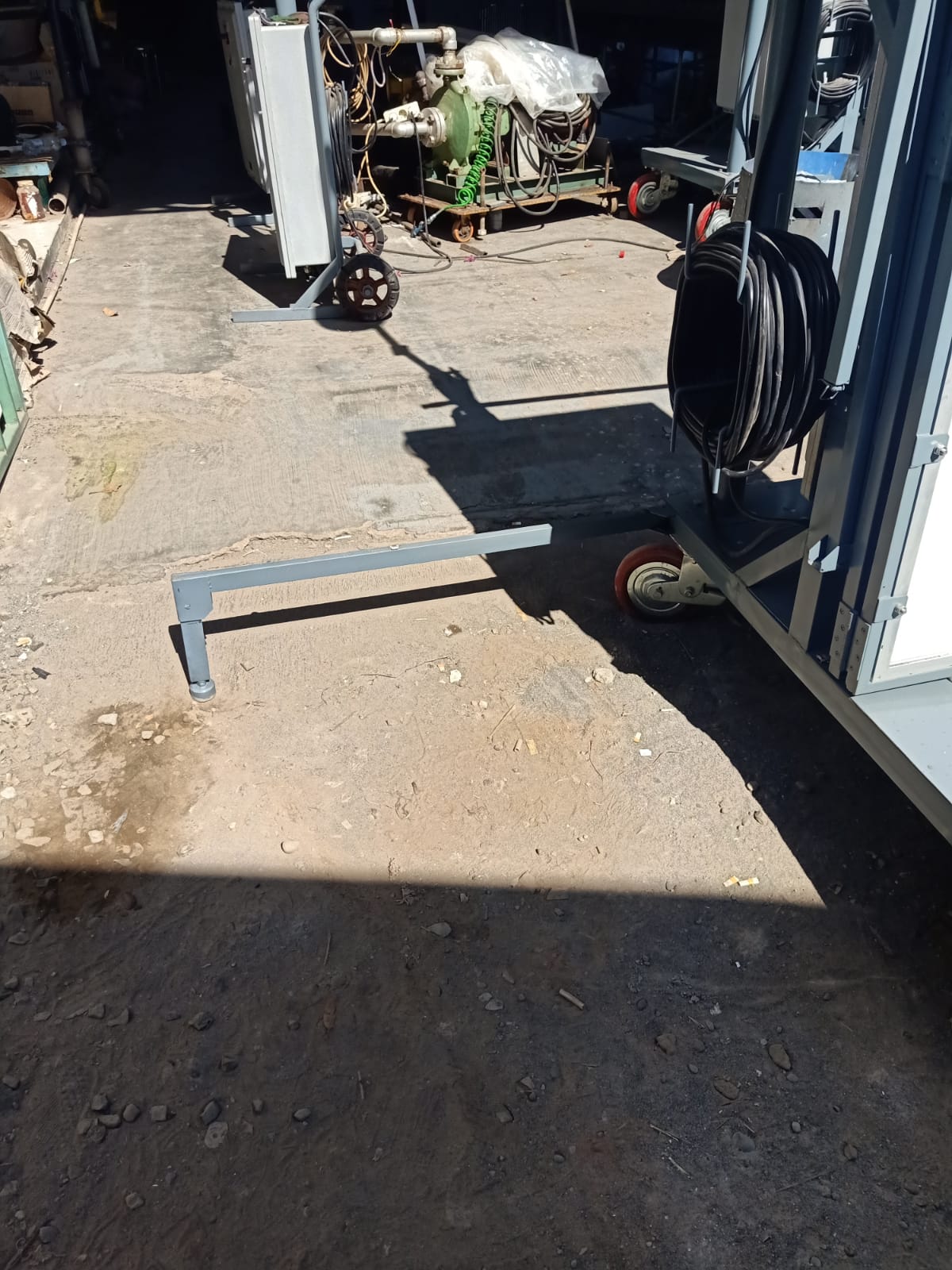
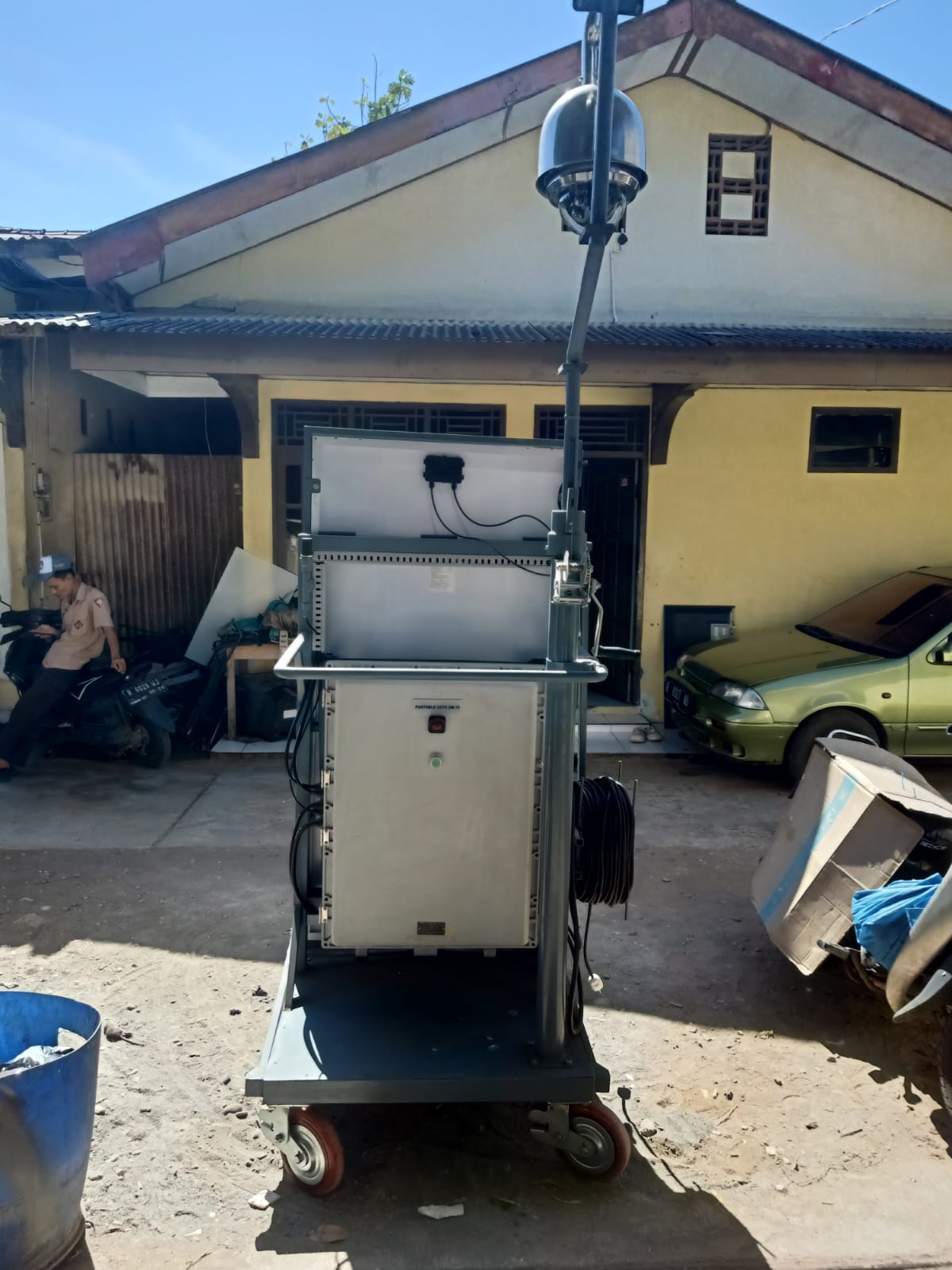
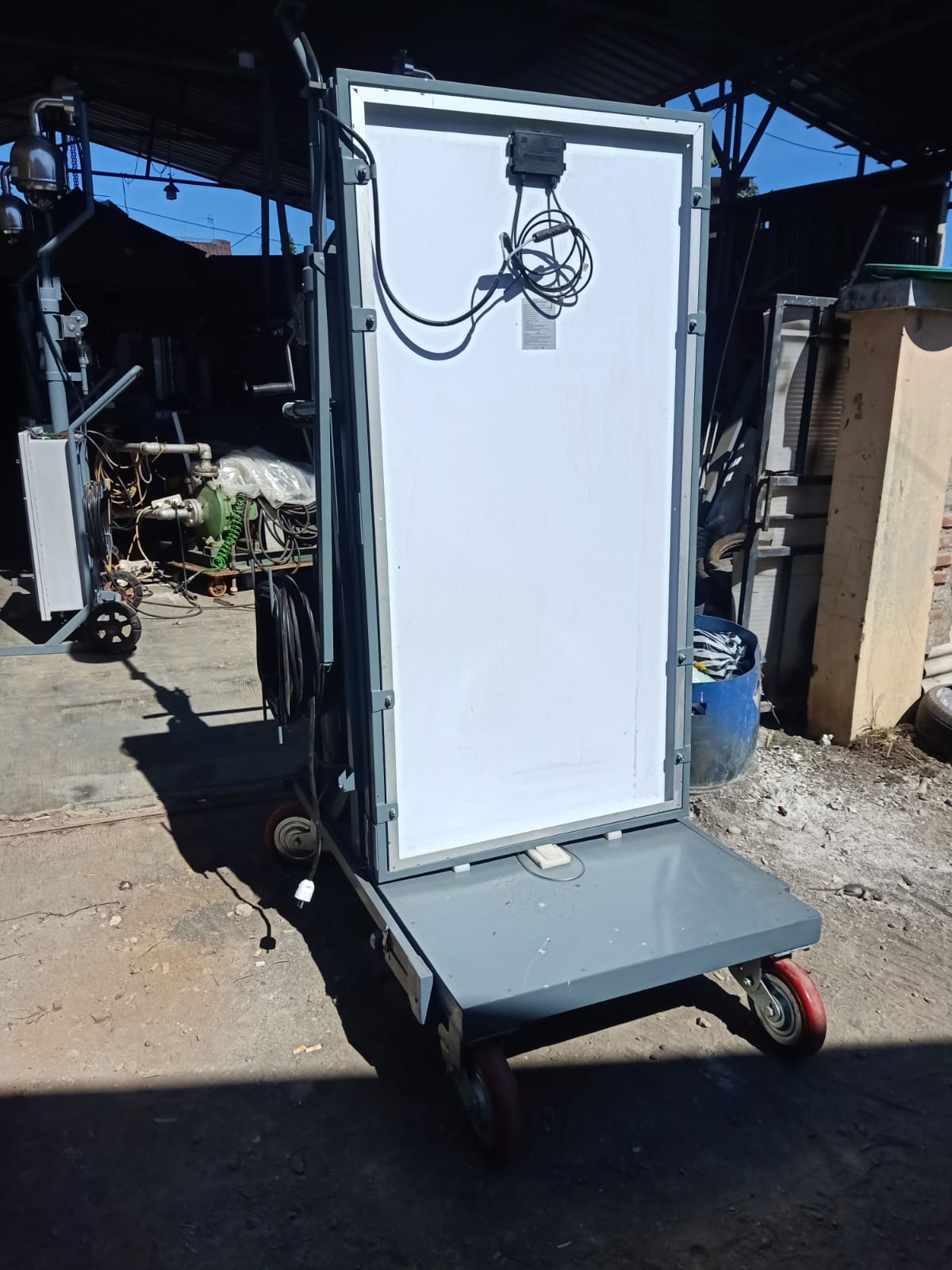
Detail yang perlu Anda kenali
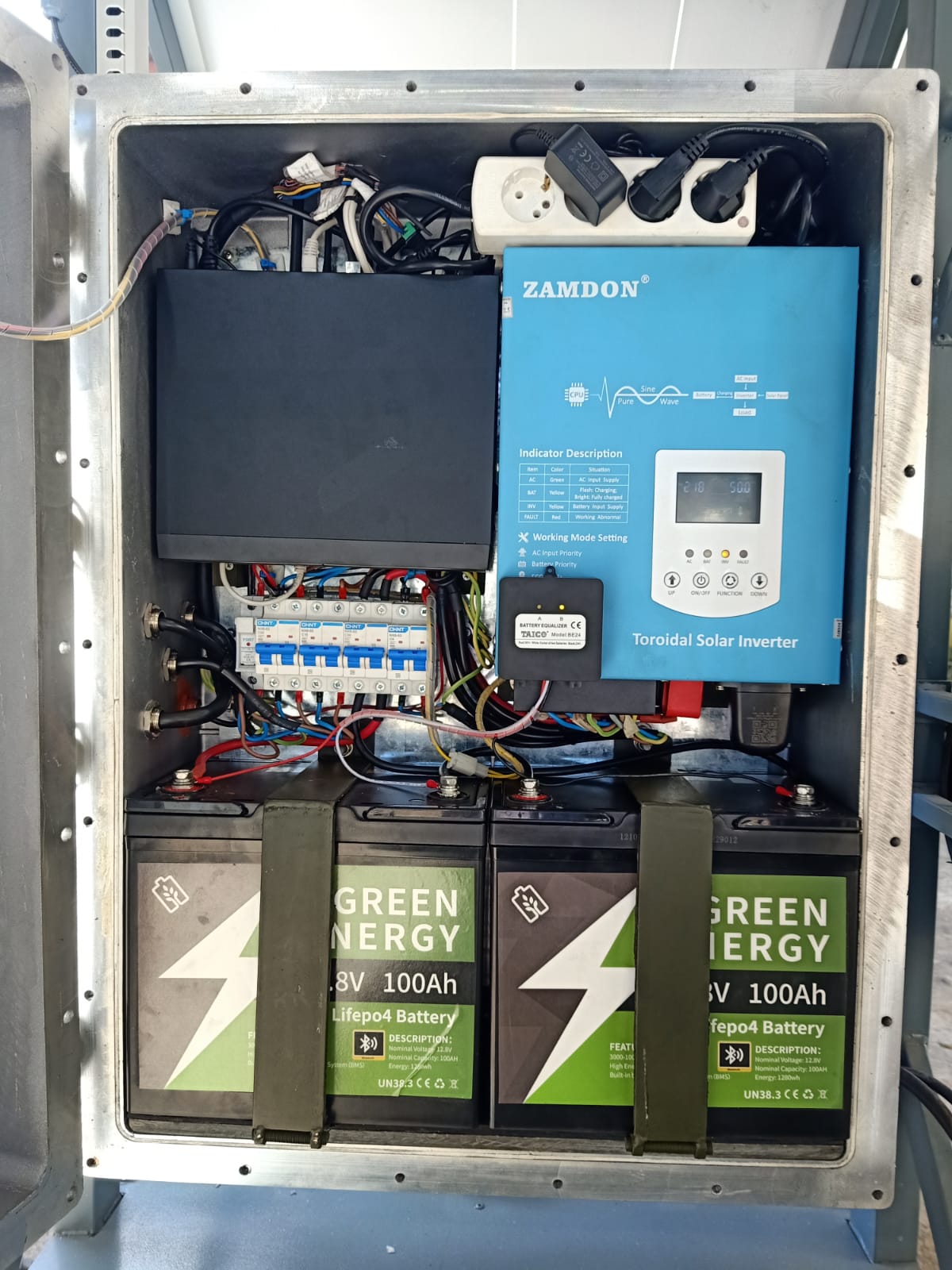
Seluruh perangkat elektronik berada di dalam kotak panel kontrol. Operator tidak perlu membukanya untuk pengoperasian sehari-hari — hanya tombol daya di pintu depan yang perlu disentuh. Foto interior berikut disertakan agar Anda tetap mengenali isinya jika teknisi memandu pemeriksaan melalui telepon.
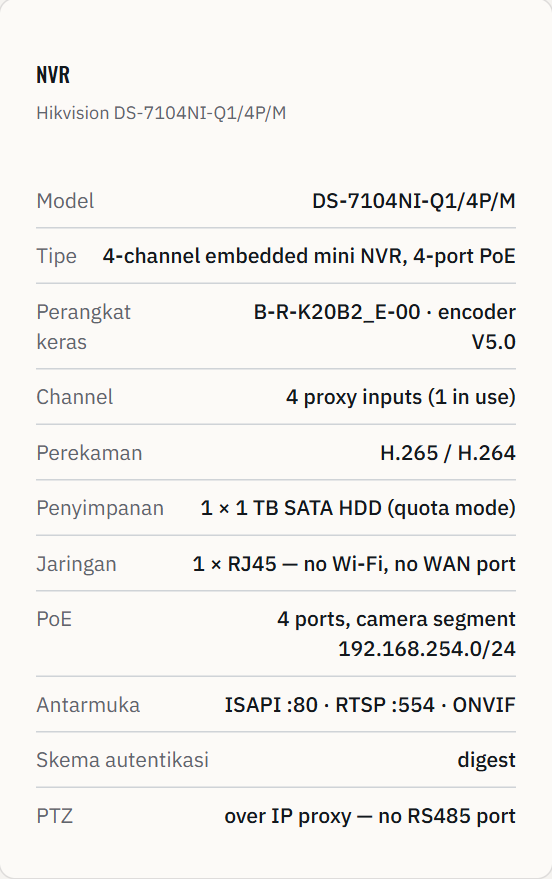
Menerima gambar dari kamera dan menyimpannya ke hard disk di dalamnya. Semua recording yang Anda cari lewat halaman CCTV berasal dari perangkat ini. Lampu indikatornya harus menyala tetap.
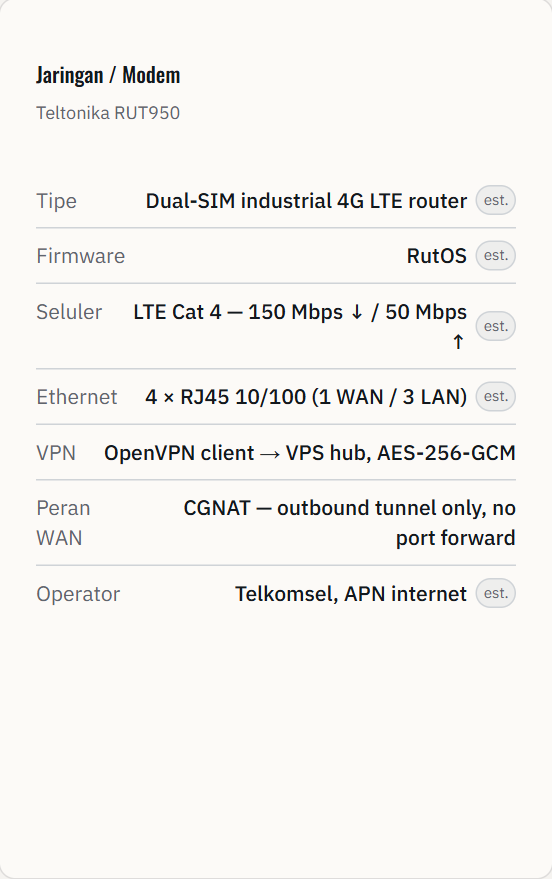
Penghubung site ke internet melalui jaringan seluler, sekaligus pembentuk tunnel VPN ke pusat. Jika perangkat ini mati, seluruh halaman aplikasi kehilangan data dari site.
Mengubah arus DC dari baterai dan panel surya menjadi arus AC untuk peralatan. Layar kecil di badannya menampilkan angka yang sama dengan halaman Solar.
Dongle kecil pada inverter yang membaca angka inverter lalu mengirimkannya ke cloud DessMonitor. Jika terlepas, halaman Solar berhenti diperbarui meskipun inverter tetap bekerja.
Dua pak baterai lithium LiFePO4 12,8V 100Ah di dasar kotak, menyimpan daya untuk malam hari dan saat listrik PLN padam. Tipe pak-nya sama dengan versi unit tanpa panel surya; versi ini membawa dua, versi itu satu. Jangan melepas ikatan talinya dan jangan menaruh benda di atasnya.
Deretan MCB (circuit breaker) CHNT beserta modul equalizer baterai Taico yang menjaga keseimbangan pengisian kedua baterai. Posisi MCB hanya boleh diubah oleh teknisi yang berwenang.
Lembar spesifikasi perangkat
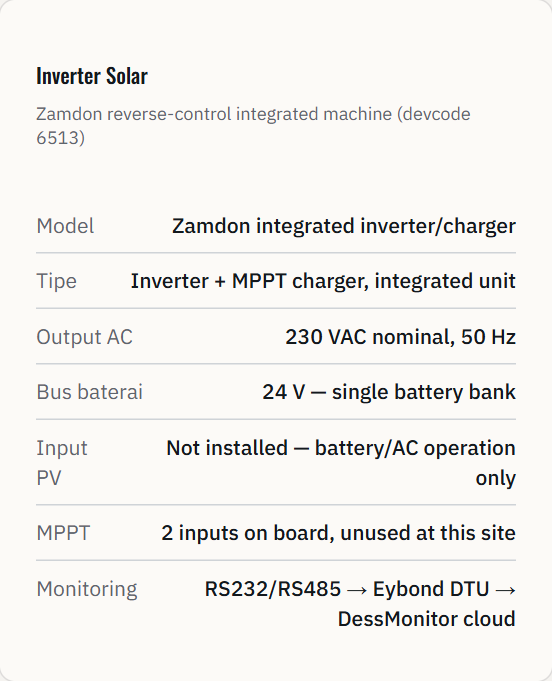
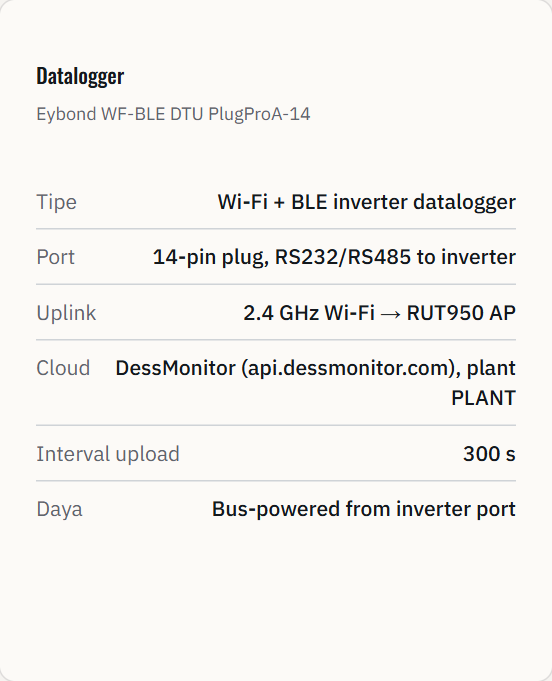
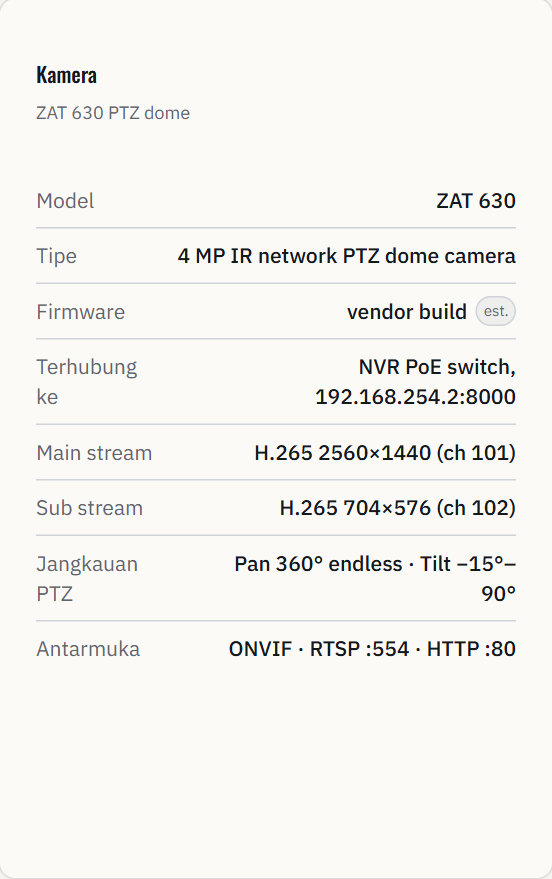
Pemasangan & Pengoperasian di Lapangan
Tujuh tahap berurutan untuk unit versi bersurya, dari terlipat sampai beroperasi penuh, lalu kembali terlipat. Nama komponen yang disebut di sini diperkenalkan pada Bagian 10.
Urutan tahap tidak boleh ditukar. Stabilizer selalu lebih dahulu daripada panel, dan panel selalu lebih dahulu daripada tiang — setiap tahap menyiapkan kestabilan yang dibutuhkan tahap berikutnya. Proses shutdown mengerjakan urutan yang sama secara terbalik.
Tahap 1 — Memindahkan unit ke lokasi
Pastikan panel surya terlipat vertikal, stabilizer terlipat ke dalam rangka, dan tiang kamera pada posisi paling rendah.
Lepaskan rem roda pada keempat caster dengan menginjak tuas rem ke atas.
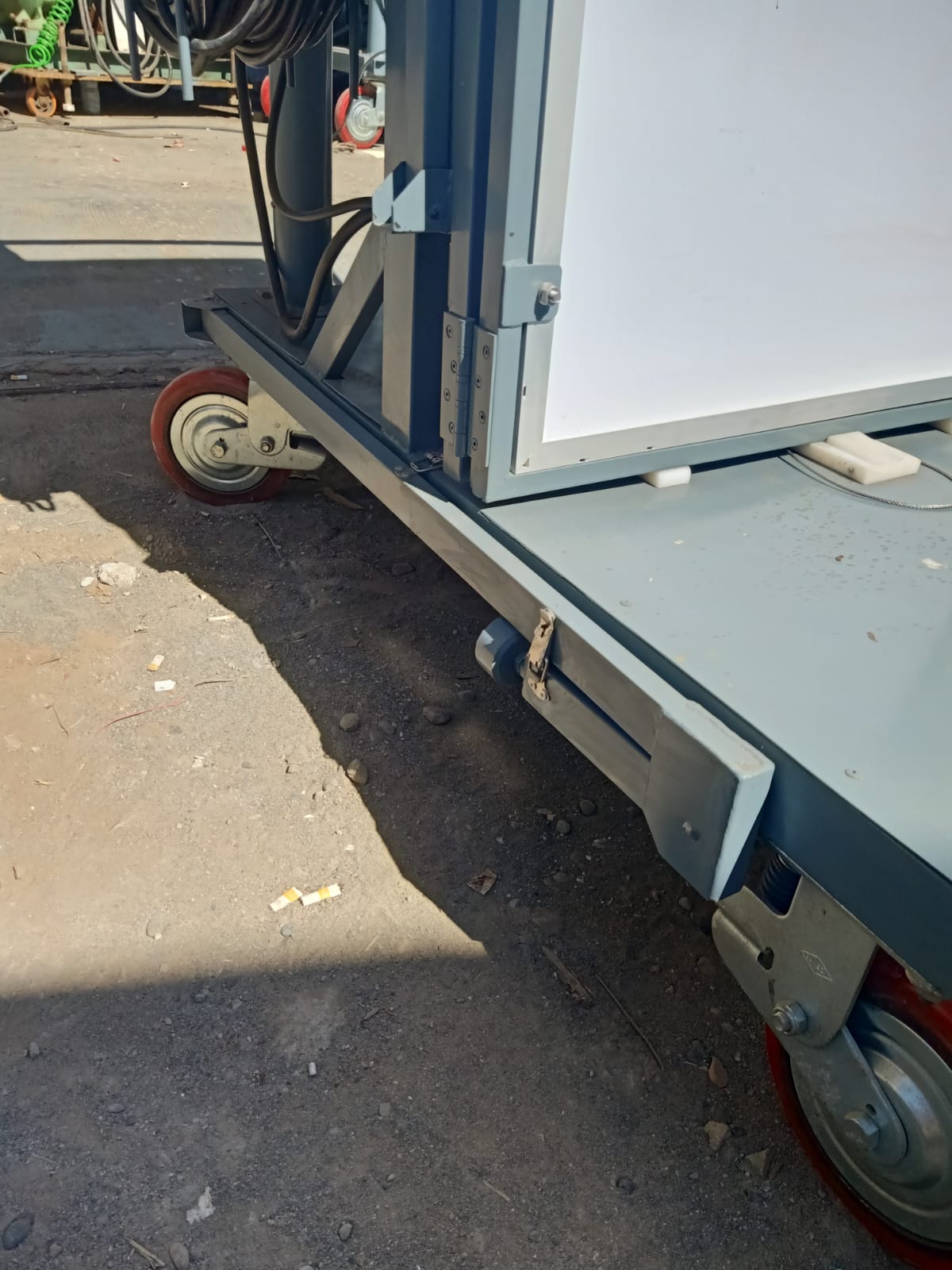
Dorong unit lewat pegangan di sisi kotak panel — jangan mendorong pada tiang kamera atau panel surya.
Pilih lokasi yang datar, keras (beton atau aspal), dan terkena sinar matahari langsung sepanjang hari.
Hadapkan panel surya ke arah utara (untuk belahan bumi selatan) agar mendapat sinar optimal.
Kunci keempat rem roda setelah unit berada di posisi yang diinginkan.
Tahap 2 — Membuka dan mengunci stabilizer
Lepaskan penjepit pengunci pada tiap stabilizer — ada dua kaki, satu di setiap sisi rangka.
Tarik kaki baja kotak itu keluar sampai membentang mendatar penuh dari rangka.
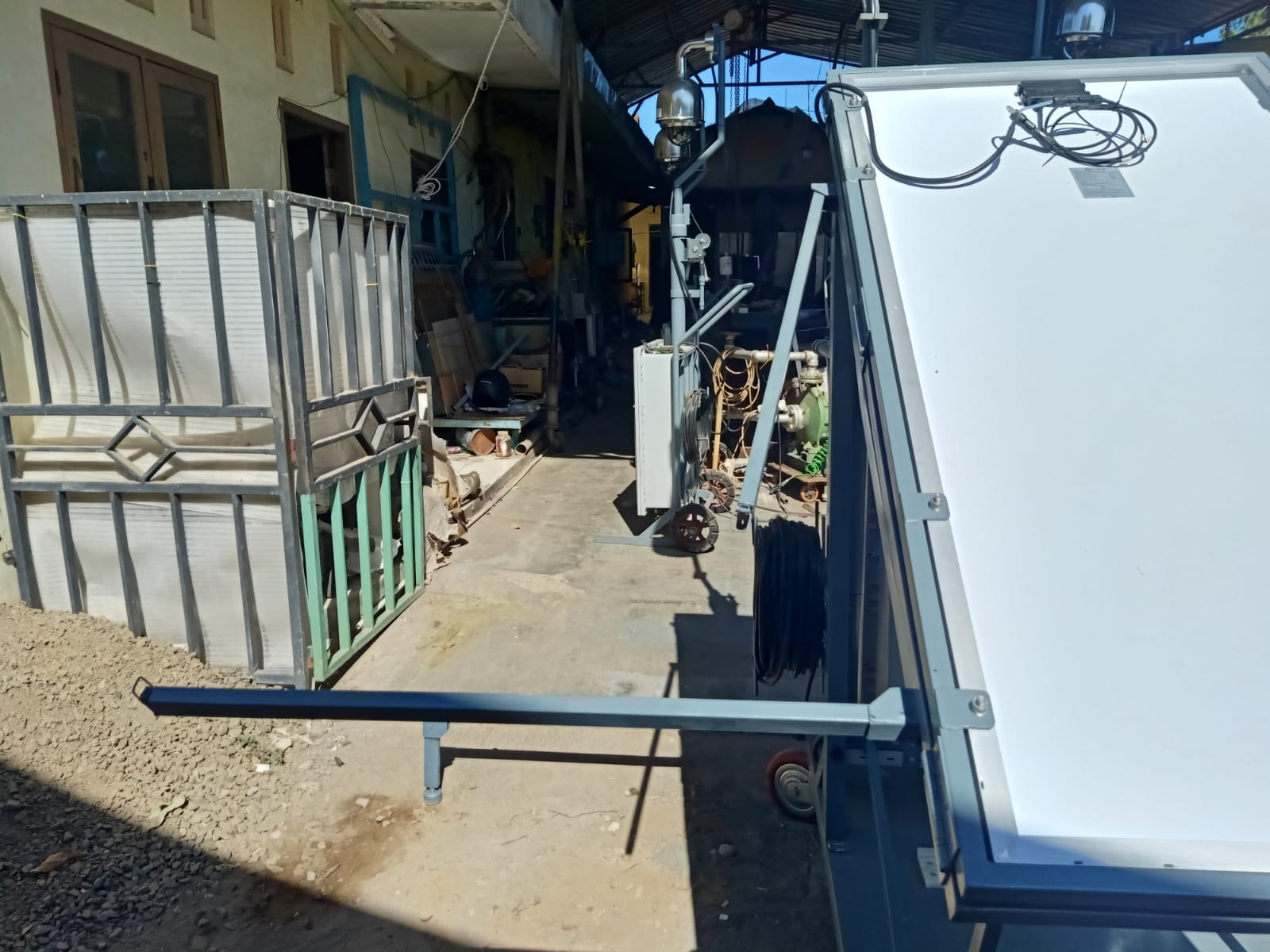
Kencangkan kembali penjepitnya sampai kaki kaku pada posisi mendatar; kaki tidak boleh bergoyang.
Putar pad penyetel di ujung tiap kaki sampai menapak padat dan rata di tanah — inilah yang menahan unit agar tidak oleng di permukaan yang tidak rata.
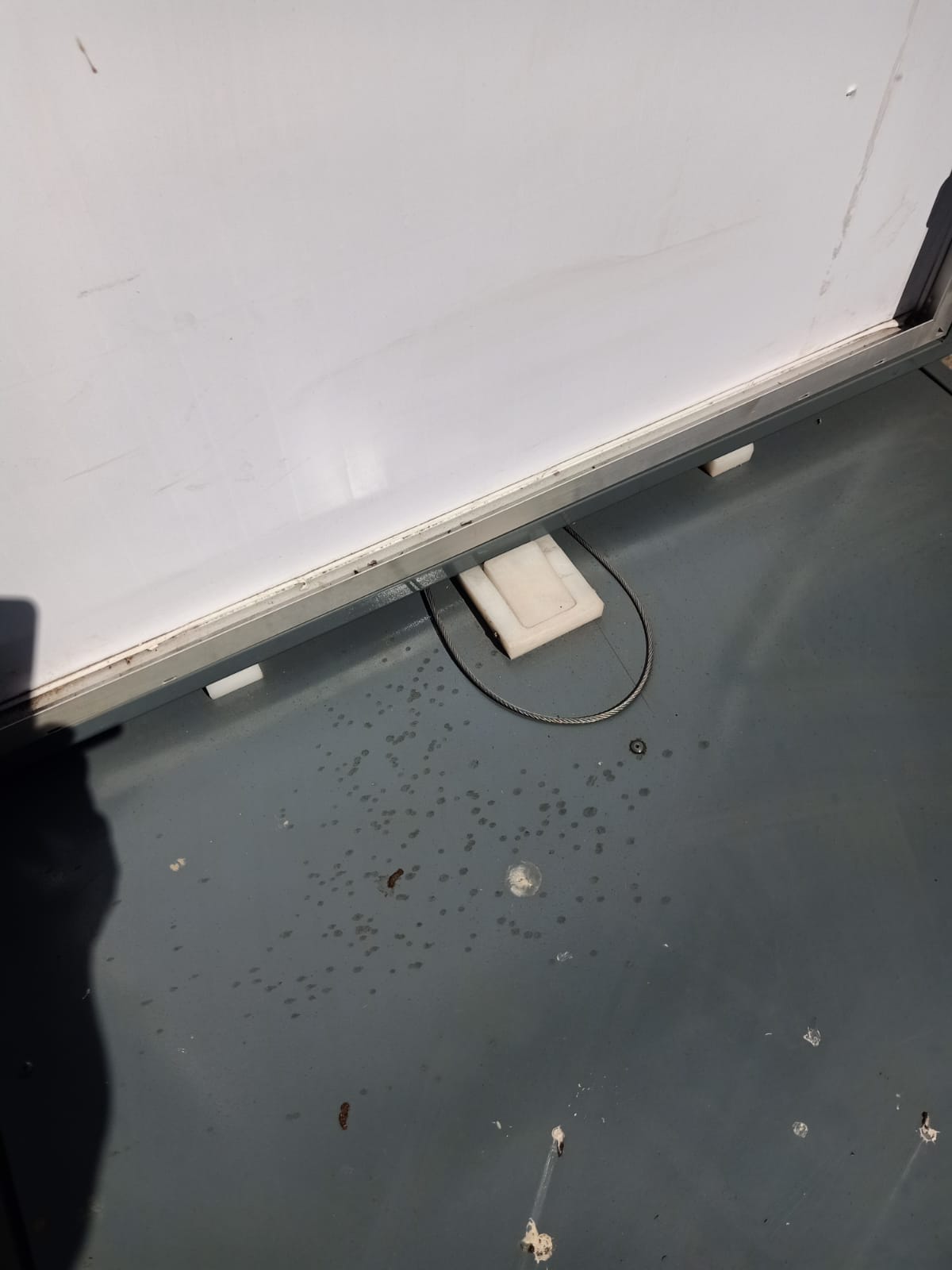
Pastikan pengunci platform dasar tertutup rapat dan sling baja pengamannya terpasang.
Periksa kestabilan unit dengan mendorong perlahan dari samping — unit tidak boleh bergoyang.
Tahap 3 — Membuka panel surya
Berdiri di samping panel, lalu lepaskan pengait logam yang mengunci panel pada posisi terlipat vertikal.
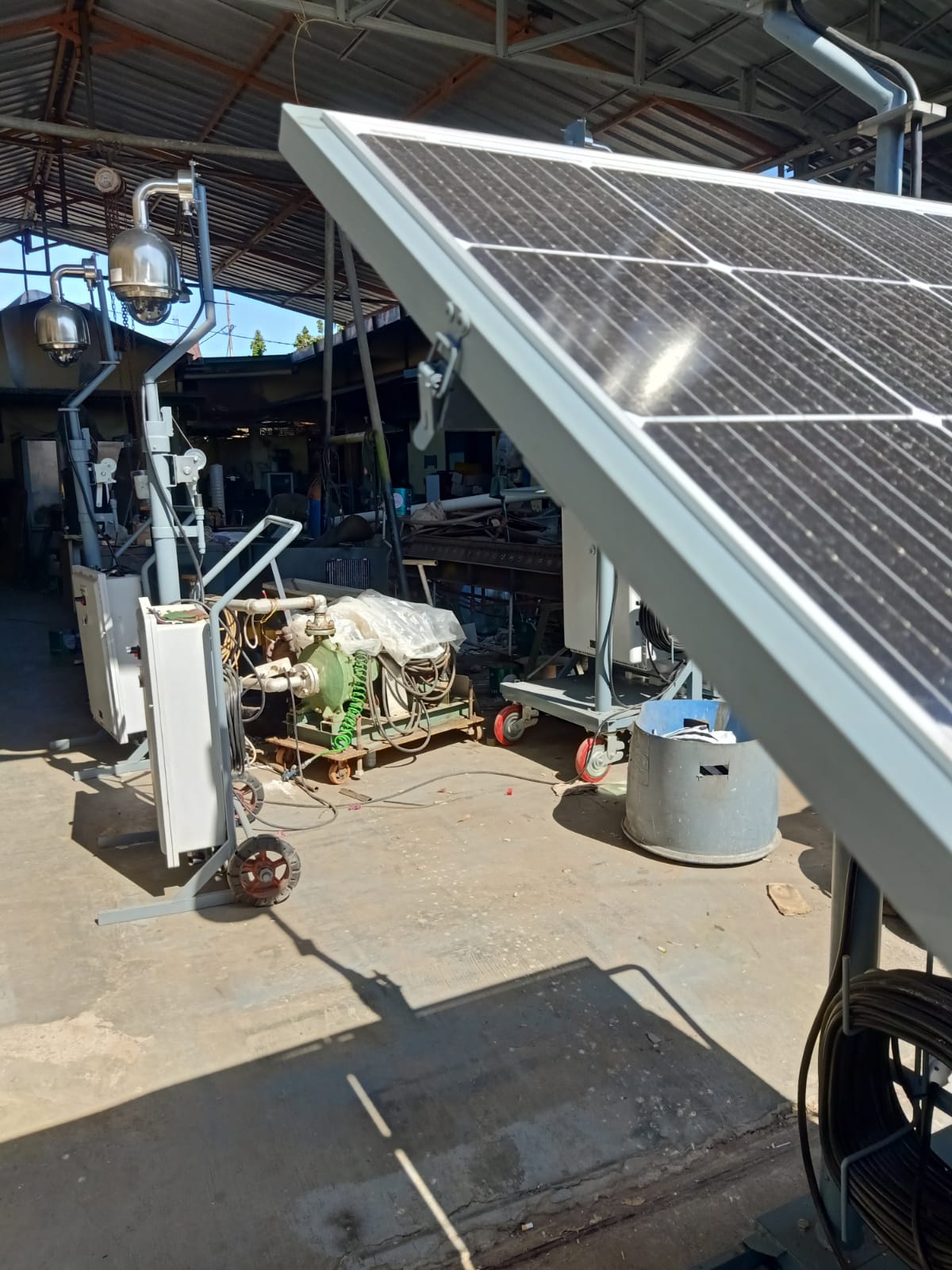
Angkat panel ke atas sampai tepi bawahnya lepas dari dudukan pengait pada kanopi tiang.
Tekuk kanopi tiang ke belakang secara perlahan sampai terlipat balik, sambil menahan bingkai panel — bukan permukaan kacanya — dengan kedua tangan.
Rebahkan panel mengikuti kanopi yang terlipat balik, sampai panel berada pada posisi miring operasional.
Kunci pengait logam pada rangka panel agar panel terkunci di posisi terbuka — bingkai tidak boleh bergoyang saat digoyang ringan.
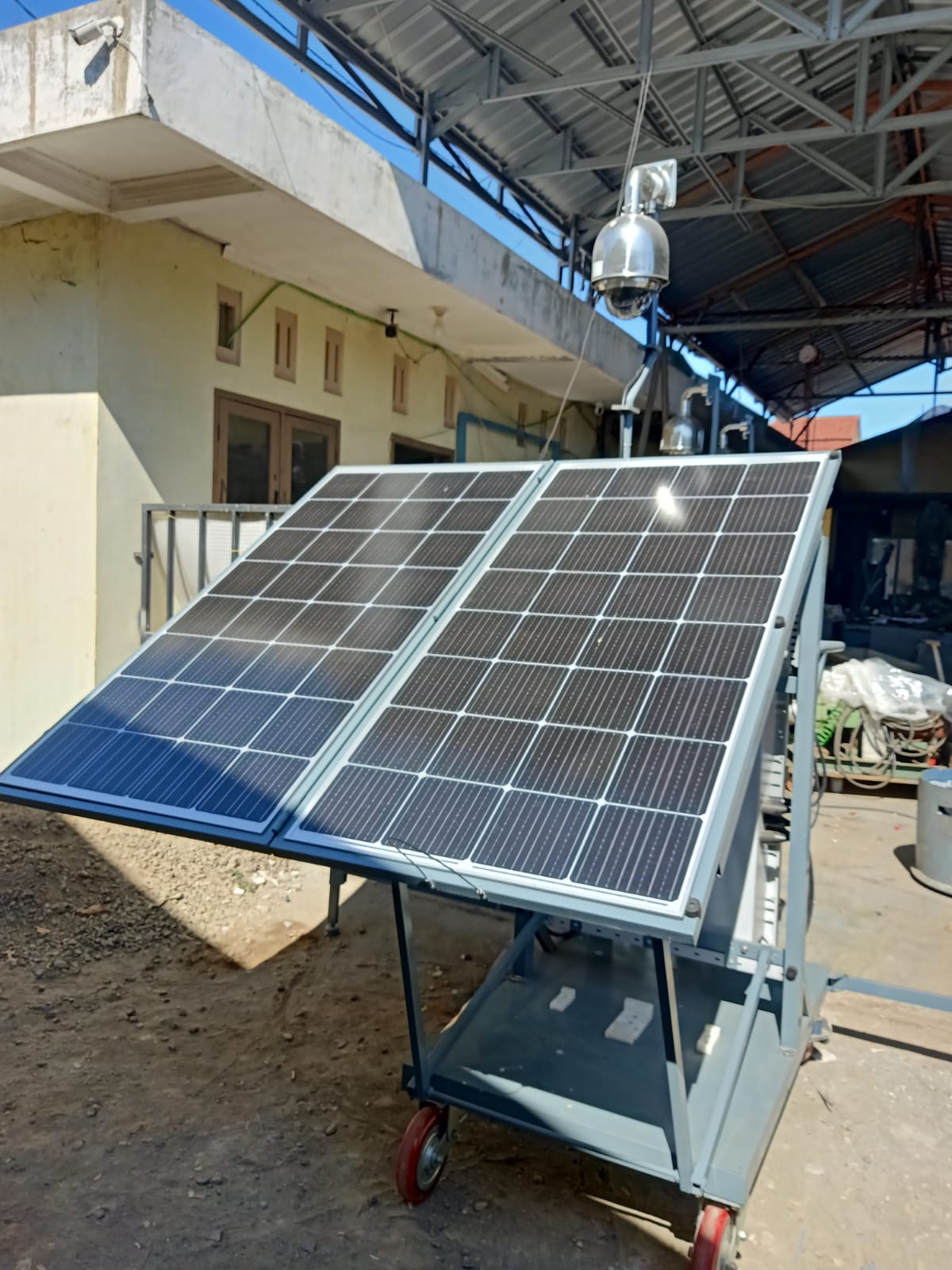
Ulangi untuk panel di sisi sebaliknya.
Pastikan kabel daya panel tidak terjepit dan konektornya terpasang rapat pada junction box di belakang panel.
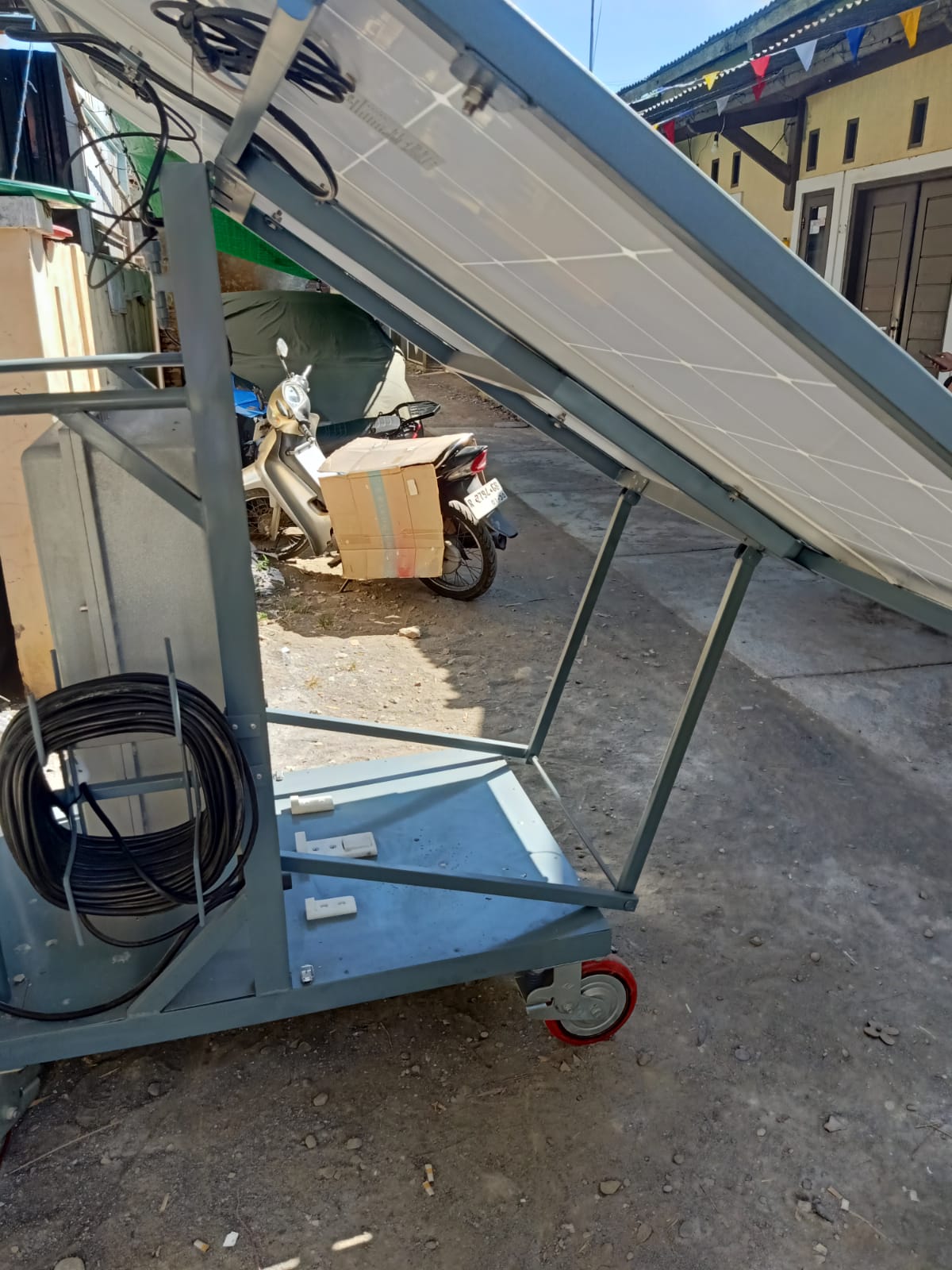
Tahap 4 — Menaikkan tiang kamera
Pastikan stabilizer sudah terbuka dan terkunci, serta tidak ada orang atau benda di bawah lintasan tiang.
Pasang tuas engkol pada poros engkol di samping kotak panel — pastikan tuas terkunci rapat pada porosnya.
Putar engkol perlahan searah jarum jam untuk menaikkan tiang. Satu orang memutar, satu orang mengawasi tiang.
Naikkan tiang sampai ketinggian yang diinginkan. Berhenti memutar begitu terasa tahanan keras — jangan dipaksakan.
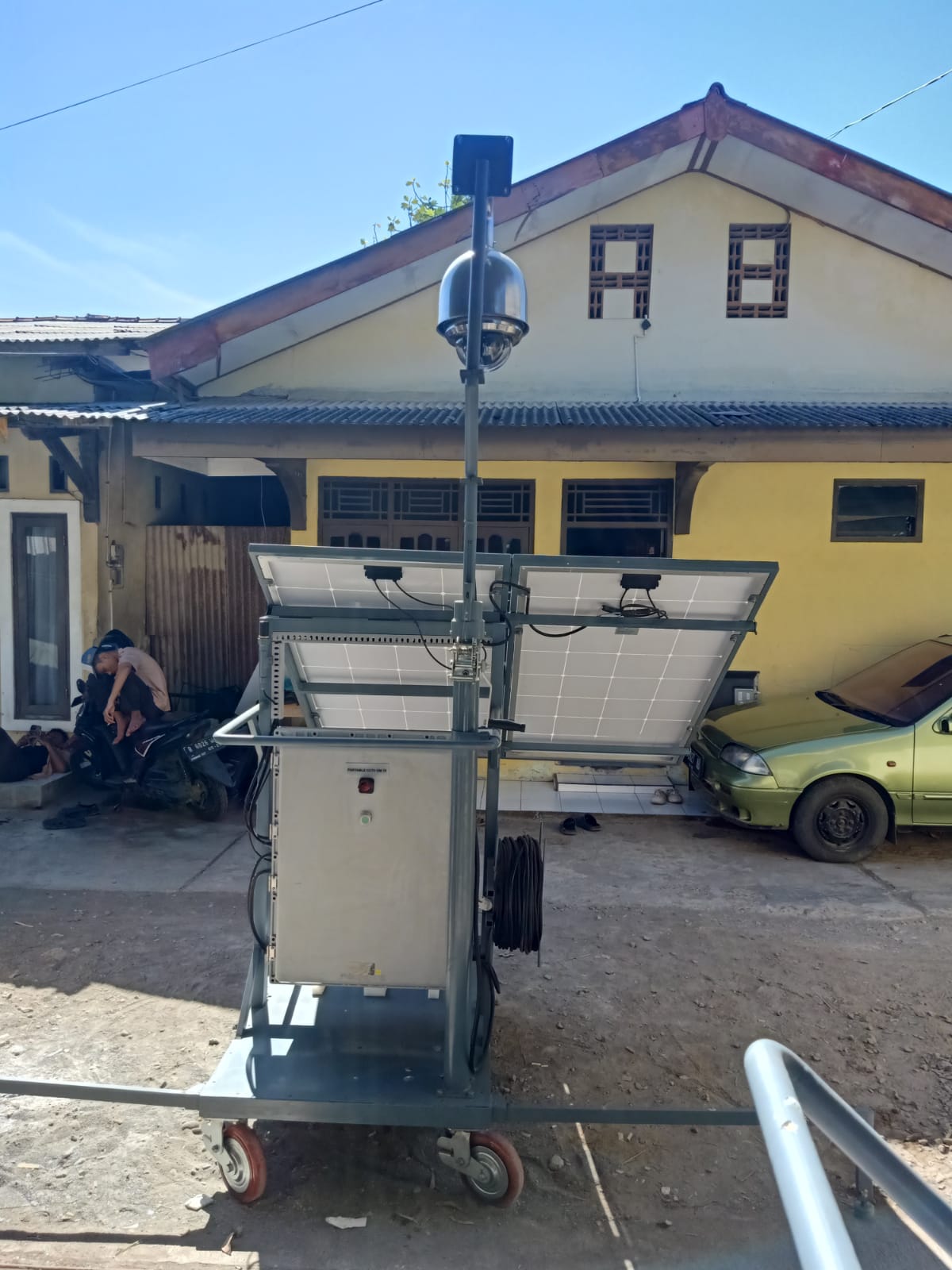
Lepaskan tuas engkol dan simpan di tempat yang aman, agar tidak menggantung sebagai beban pada poros.
Tahap 5 — Urutan penyalaan
Periksa secara visual: stabilizer terbuka, panel surya terbuka dan terkunci, tiang terangkat, kabel panel tersambung ke junction box.
Sambungkan kabel PLN cadangan jika tersedia di lokasi — opsional, unit bisa bekerja murni dari tenaga surya dan baterai.
Nyalakan MCB merah pada pintu depan kotak panel kontrol — posisi ke atas (ON).
Tunggu 30–60 detik. Inverter menyala dengan bunyi klik dan layarnya hidup, menandakan sistem kelistrikan aktif.
Tunggu 1–2 menit lagi. Router mulai tersambung ke jaringan seluler dan membangun tunnel VPN.
NVR menyala otomatis dan mulai menerima gambar dari kamera. Lampu indikator NVR harus menyala tetap, bukan berkedip.
Buka aplikasi di perangkat Anda, lalu buka baris Koneksi Situs di kaki halaman mana pun — kelima titiknya harus hijau satu per satu.
Uji kamera lewat halaman CCTV: tekan Mulai live view, lalu coba gerakkan kamera dengan kontrol PTZ.
Tahap 6 — Checklist harian
Buka halaman Ringkasan — keempat kartu status hijau dan Isu Aktif bernilai nol.
Periksa Daya Solar. Pada siang hari cerah angka ini harus di atas nol; nol di siang hari berarti ada masalah pada panel atau inverter.
Periksa Baterai. Persentasenya harus di atas 50% pada siang hari; jika terus menurun padahal cuaca cerah, pengisiannya bermasalah.
Uji live view kamera sebentar — gambar bergerak dan PTZ merespons.
Lirik kartu Perekam di halaman Ringkasan — Rekaman hari ini Terjadwal dan Jam perekam Sinkron. Sesekali periksa juga Penyimpanan SMS di halaman Router agar tidak penuh.
Periksa fisik unit dari jauh: panel surya tidak terhalang, tiang tegak, stabilizer masih terkunci.
Bersihkan permukaan panel surya jika terlihat berdebu, memakai kain lembut dan air bersih.
Tahap 7 — Urutan shutdown dan melipat kembali
Hentikan semua live view di halaman CCTV dengan menekan Stop, lalu tutup aplikasi.
Matikan MCB merah pada pintu depan kotak panel kontrol — posisi ke bawah (OFF).
Cabut kabel PLN cadangan jika tersambung, lalu tunggu 30 detik sampai semua perangkat di dalam kotak panel mati sepenuhnya.
Pasang tuas engkol dan turunkan tiang kamera sepenuhnya dengan memutar berlawanan arah jarum jam secara perlahan, lalu lepas dan simpan tuasnya.
Tutup panel surya: lepas pengait, angkat panel, tekuk kanopi tiang kembali ke depan sampai tegak, rebahkan panel ke posisi vertikal mengikutinya, lalu kunci pengaitnya.
Lipat stabilizer: lepas penjepitnya, dorong kaki ke dalam sampai terkunci rata dengan rangka.
Lepas rem roda jika unit akan dipindahkan, atau biarkan terkunci jika unit tetap di tempat.
Pemecahan Masalah Cepat
Gangguan yang paling sering ditemui, beserta langkah pertama yang bisa Anda lakukan sendiri.
- Saya tidak bisa login, kata sandi selalu ditolak.
- Pastikan huruf besar dan kecilnya tepat, dan Caps Lock tidak menyala. Gunakan ikon mata untuk memastikan yang Anda ketik sudah benar. Jika masih ditolak, gunakan tautan Lupa kata sandi? dan jawab pertanyaan keamanan Anda. Jika pertanyaan keamanan belum pernah dipasang, hubungi administrator. Terlalu banyak percobaan beruntun akan membuat akun dijeda sementara — tunggu sebentar sebelum mencoba lagi.
- Saya tiba-tiba dikeluarkan dari aplikasi.
- Satu akun hanya bisa login di tiga perangkat sekaligus. Jika ada orang lain memakai akun yang sama, atau Anda login dari perangkat keempat, sesi paling lama akan berakhir sendiri. Periksa daftar Perangkat Aktif di halaman Akun.
- Live view tidak mau jalan, yang muncul hanya gambar diam.
- Gambar diam memang yang tampil sebelum streaming dijalankan. Tekan Mulai live view lalu tunggu beberapa detik. Jika tetap gagal, pilih kualitas SD, lalu tekan Muat Ulang pada header halaman. Jika kartu Camera berbunyi Offline, gangguannya ada di lapangan, bukan di perangkat Anda.
- Gambar kamera tersendat-sendat.
- Turunkan kualitas gambar ke SD. Sinyal seluler di lapangan berubah-ubah sepanjang hari, dan SD jauh lebih tahan terhadap sinyal lemah dibandingkan HD.
- Kontrol PTZ tidak bisa ditekan.
- Kontrol PTZ baru aktif setelah live view berjalan. Jalankan streaming terlebih dahulu, lalu coba lagi.
- Angka pada halaman Solar tidak berubah sejak tadi.
- Perhatikan keterangan waktu di bawah judul halaman. Jika waktunya sudah lama tertinggal, tekan Muat Ulang. Jika tetap tidak berubah, buka baris Koneksi Situs di kaki halaman — kemungkinan datalogger atau jalur DessMonitor sedang terputus.
- Ada alarm yang terus muncul kembali setelah saya konfirmasi.
- Konfirmasi hanya menandai bahwa alarm sudah Anda lihat, bukan memperbaiki penyebabnya. Alarm yang berulang berarti kondisi pemicunya masih berlangsung. Catat kode dan waktunya, lalu laporkan kepada administrator.
- Seluruh halaman menunjukkan tanda merah sekaligus.
- Buka baris Koneksi Situs di kaki halaman. Jika Tunnel VPN merah, berarti site sedang terputus dari pusat — biasanya karena listrik padam, sinyal seluler hilang, atau kuota data SIM habis. Halaman Router menunjukkan Sinyal dan Data seluler terakhir yang sempat terbaca. Yang bisa Anda lakukan adalah melaporkannya; pemulihannya di luar wewenang operator.
- Kamera Online, tetapi recording kejadian tidak ditemukan.
- Buka kartu Perekam di halaman Ringkasan atau tab Perekam di halaman CCTV. Jadwal mati berarti perekam memang tidak merekam; Selisih beberapa menit pada Jam perekam berarti rekaman ada, tetapi tercatat pada jam yang bergeser — coba perlebar rentang pencarian. Disk yang tidak sehat juga membuat rekaman hilang. Ketiganya perlu dilaporkan kepada administrator.
- Penyimpanan SMS di halaman Router penuh.
- Tekan Hapus yang dibaca di Kotak masuk SIM. Jika sebagian besar slot terisi pesan Belum dibaca, akun operator tidak bisa menghapusnya — minta administrator mengosongkan kotak masuk, karena router yang penyimpanannya penuh tidak bisa menerima perintah pemulihan lewat SMS.
- Daya Solar nol padahal matahari sedang terik.
- Periksa panel surya dari jauh: apakah ada bayangan pohon atau bangunan yang menutupinya, apakah permukaannya tebal berdebu, dan apakah panel benar-benar terbuka pada posisi miring dan terkunci. Periksa juga konektor kabel panel pada junction box di belakang panel. Jika ketiganya normal dan angkanya tetap nol, laporkan kepada administrator.
- Baterai terus menurun meski cuaca cerah seharian.
- Berarti pengisian dari panel tidak masuk, atau beban melebihi daya yang dihasilkan. Bersihkan permukaan panel, pastikan panel menghadap matahari dan tidak terhalang. Sebagai penyelamat sementara, colokkan kabel AC 220V ke listrik di lokasi bila tersedia — unit ini memang dirancang menerima keduanya. Lalu laporkan.
Daftar Istilah
Istilah yang dipakai aplikasi ini dengan arti yang khusus.
| Istilah | Artinya di aplikasi ini |
|---|---|
| Alarm | Laporan dari perangkat bahwa ada kondisi yang menyimpang. Belum tentu berarti kerusakan. |
| Baterai | Bank baterai penyimpan daya di lapangan, bukan baterai perangkat Anda. Tipe pak-nya sama pada kedua versi unit; jumlahnya yang berbeda — dua pak pada unit bersurya, satu pak pada unit tanpa panel surya. |
| Beban | Daya yang sedang dipakai peralatan di lapangan, dalam watt. |
| Data seluler | Pemakaian data jaringan 4G oleh router site, dihitung per hari. Berbeda dengan Penggunaan Data di halaman CCTV yang hanya menghitung video. |
| Datalogger | Dongle kecil yang membaca angka inverter dan mengirimkannya ke cloud. |
| DessMonitor | Layanan cloud tempat data inverter dikumpulkan sebelum ditampilkan di aplikasi ini. |
| Grid | Listrik jaringan PLN yang masuk ke inverter. |
| Isu aktif | Masalah yang sedang berlangsung dan belum dikonfirmasi siapa pun. |
| Koneksi Situs | Baris di kaki setiap halaman yang merangkum apakah Tunnel VPN, Gateway, NVR, Layanan Video, dan DessMonitor sedang terjangkau. |
| Konfirmasi | Menandai bahwa sebuah alarm sudah dilihat. Bukan tindakan perbaikan. |
| Kotak masuk SIM | SMS yang diterima kartu SIM router site. Ruangnya terbatas dan dipakai juga untuk perintah pemulihan. |
| Live view | Streaming kamera yang sedang berjalan saat itu juga. |
| NVR | Network Video Recorder; perekam yang menyimpan video kamera di lapangan. |
| Perekam | Sebutan untuk NVR di aplikasi ini; kartu dan tab Perekam menampilkan kondisi disk, jadwal rekaman, dan jamnya. |
| Playback | Pemutaran recording lama yang ditarik dari NVR. |
| Preset | Sudut pandang kamera yang disimpan agar bisa dipanggil kembali. |
| PTZ | Pan, tilt, zoom — geser mendatar, geser tegak, dan perbesar. |
| Router | Router 4G di lapangan yang menghubungkan seluruh perangkat site ke internet dan ke Tunnel VPN. |
| Sesi | Satu perangkat yang sedang login memakai akun Anda. |
| Site | Satu lokasi terpantau beserta seluruh perangkatnya; melekat pada akun Anda. |
| Stabilizer | Kaki baja yang ditarik keluar dari rangka unit agar unit tidak terbalik saat tiang kamera ditegakkan. |
| Telemetri | Deretan angka pengukuran yang direkam dari waktu ke waktu. |
| Tunnel VPN | Jalur aman yang menghubungkan jaringan site dengan pusat. |
| Versi unit | Bentuk unit lapangan di site Anda: dengan panel surya, atau tanpa panel surya. Isi Bagian 10 dan 11 mengikuti versi yang dipilih. |
Tangkapan layar pada panduan ini diambil dari lokasi contoh dengan antarmuka berbahasa Indonesia. Angka yang Anda lihat di layar sendiri tentu berbeda. Bila ada bagian aplikasi yang berubah dan panduan ini belum menyesuaikan, laporkan melalui halaman Hubungi pengembang.